Opening hours
Monday, Tuesday 9:30-11:30 & 13-16h
Wednesday, Thursday 10:15-11:30 & 13-16h
Friday: 9:30-11:30 a.m.
Appointments are also possible outside opening hours. To make an appointment, please send an email to: rz-service(at)rwu.de
Status page of our IT services: https://rz-monitor.hs-weingarten.de/status/it-status
Contact us
Helpdesk
Please note that from time to time employees may be out in the field.
It is therefore advisable to make an appointment.
To do this, please send an e-mail to: rz-service(at)rwu.de
with a brief description of the problem. Thank you very much!
Room H204 Building H (main building)
Studihelpdesk
During the lecture period, there is a helpdesk especially for students. Here you will find a competent contact person for the most frequently asked questions about IT during your studies.
It is advisable to write a short e-mail and describe the problem. Please contact the following e-mail address: rz-studiservice(at)rwu.de. Alternatively, you can also drop by at the following times in room H204:
Wednesday & Thursday 8-11 a.m.
Friday 8-12:30
Informationssicherheit
Students & lecturers
Here you will find relevant topics for students and lecturers
Software offers
Here at RWU, various products are available for use in a university context. You can also purchase software at favorable conditions.
Campus License Agreements
The university has a campus license agreement with Adobe (CLP). Please only order Adobe products through this license agreement. An overview of products and prices can be found at: https://www.academic-center.de/cgi-bin/program/sS1665
storage location for software
The 'Images ' share currently contains over 170 GB of software. You can access the share via:
- Windows/university network: \\hrw.hs-weingarten.de\DATA\WissDoz\SOFTWARE
The data center itself does not provide any software!
In the "Freeware" directory you will find freeware that the faculties provide. In the faculty directories you will find software that the relevant faculties provide. If you have any questions about this software, please contact the academic staff of the relevant faculties.
Software provided by the faculties
- \\hrw.hs-weingarten.de\DATA\WissDoz\SOFTWARE\Fak-E (including extract MSDN-AA)
- \\hrw.hs-weingarten.de\DATA\WissDoz\SOFTWARE\Fak-M
- \\hrw.hs-weingarten.de\DATA\WissDoz\SOFTWARE\Fak-S
- \\hrw.hs-weingarten.de\DATA\WissDoz\SOFTWARE\Fak-T
DreamSpark (MSDN-AA)
Through MSDN-AA, students at the university can also obtain license-free software from Microsoft. Students from Faculty T (only the courses EU, P, TE, TM, UVM, OSM, TMO), Faculty E and Faculty M are eligible to receive this software.
software recommendations
Screen recorder for recording the screen - OBS Studio, https://obsproject.com/de
Software provided for employees
- \\hrw.hs-weingarten.de\DATA\WissDoz\SOFTWARE\RZ: Software for employees and laboratory administrators
Are you missing something? Please contact the academic staff of the faculties.
A software offer has been available to students at Ravensburg-Weingarten University of Applied Sciences since March 2017. For a fee of currently 3.99 euros per year, you can obtain the Office 365 ProPlus software package via https://bildung365.de and, if you are a student, a free license of Windows 10 Education including medium.
Office 365 ProPlus includes the following services:
- Word, Excel, PowerPoint, OneNote, Outlook, Publisher, Skype for Business and Access (Publisher, Access not for Mac)
- 5 installations per user on PC or Mac - can be used locally or offline
- An additional 5 installations on mobile devices such as tablets and smartphones
- Free updates
You can individually activate additional services in Office 365 such as OneDrive. You can find instructions on how to obtain them under this link.
RWU does not offer support for the products. However, you can receive all-day technical support from DrVis by sending an email to officesupport@drvis.de.
The page hilfe.bildung365.de also offers helpful information and the possibility to submit support requests
Prerequisites
To use Office365, you must be a student at Ravensburg-Weingarten University of Applied Sciences. Office365 can be used for 365 days from the date of activation, after which the right of use expires automatically. If you are interested in an extension, you must purchase the software package again via https://www.bildung365.de, but you do not need to reinstall it.
Office 365 has the following system requirements
- Operating system: Windows 7 SP1 or newer; Mac OS X 10.10 or newer, iPad iOS 8 or newer; Android 4.4 or newer; Windows Phone 8.1 or newer
System requirements for PC/Mac:
- Computer and processor: 86- or 64-bit processor with 1 GHz or faster and SSE2 instruction set (PC), Intel processor (Mac)
- Memory: 2 GB RAM (PC) and 4 GB RAM (Mac)
- Hard disk: 3 GB available hard disk space (PC); 6 GB HFS+ hard disk format (Mac)
- Display: Monitor with a resolution of 1024 x 768 (PC) or 1280 x 800 (Mac) or higher
- Graphics: For graphics hardware acceleration, a DirectX10-capable graphics card with a resolution of 1024 x 576 is required on the PC.
- Browser: current versions of Internet Explorer, Microsoft Edge, Safari, Chrome, or Firefox
- Other: The internet functions require an internet connection.
MATLAB installation for studentsMatlab
can be downloaded via the following link:
https://de.mathworks.com/academia/tah-portal/hochschule-ravensburg-wein…
- Click on the "Register now" button
- Log in via the mask with the university account.
- Agree that your information may be transferred
- Create an account with Mathworks.
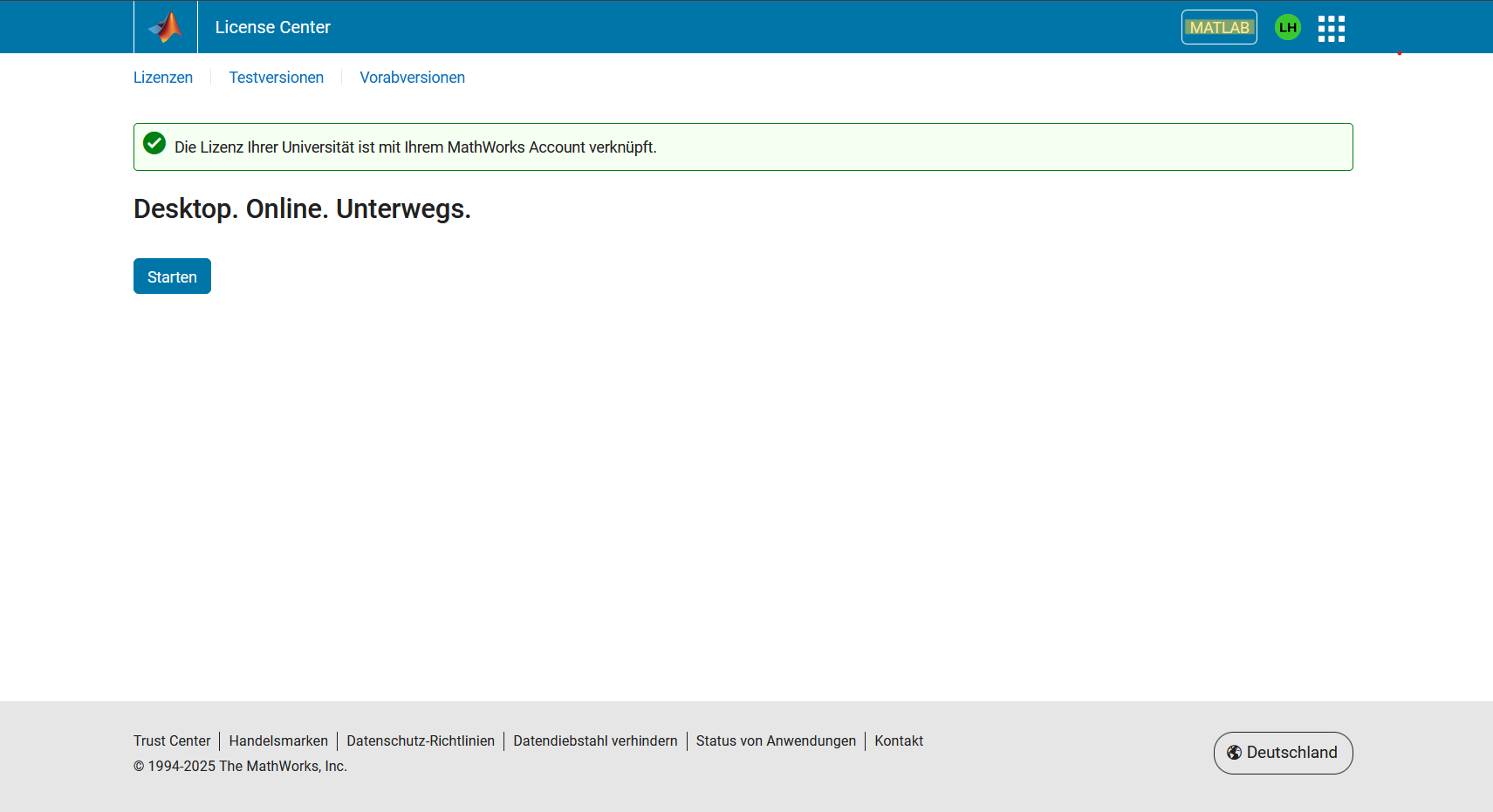
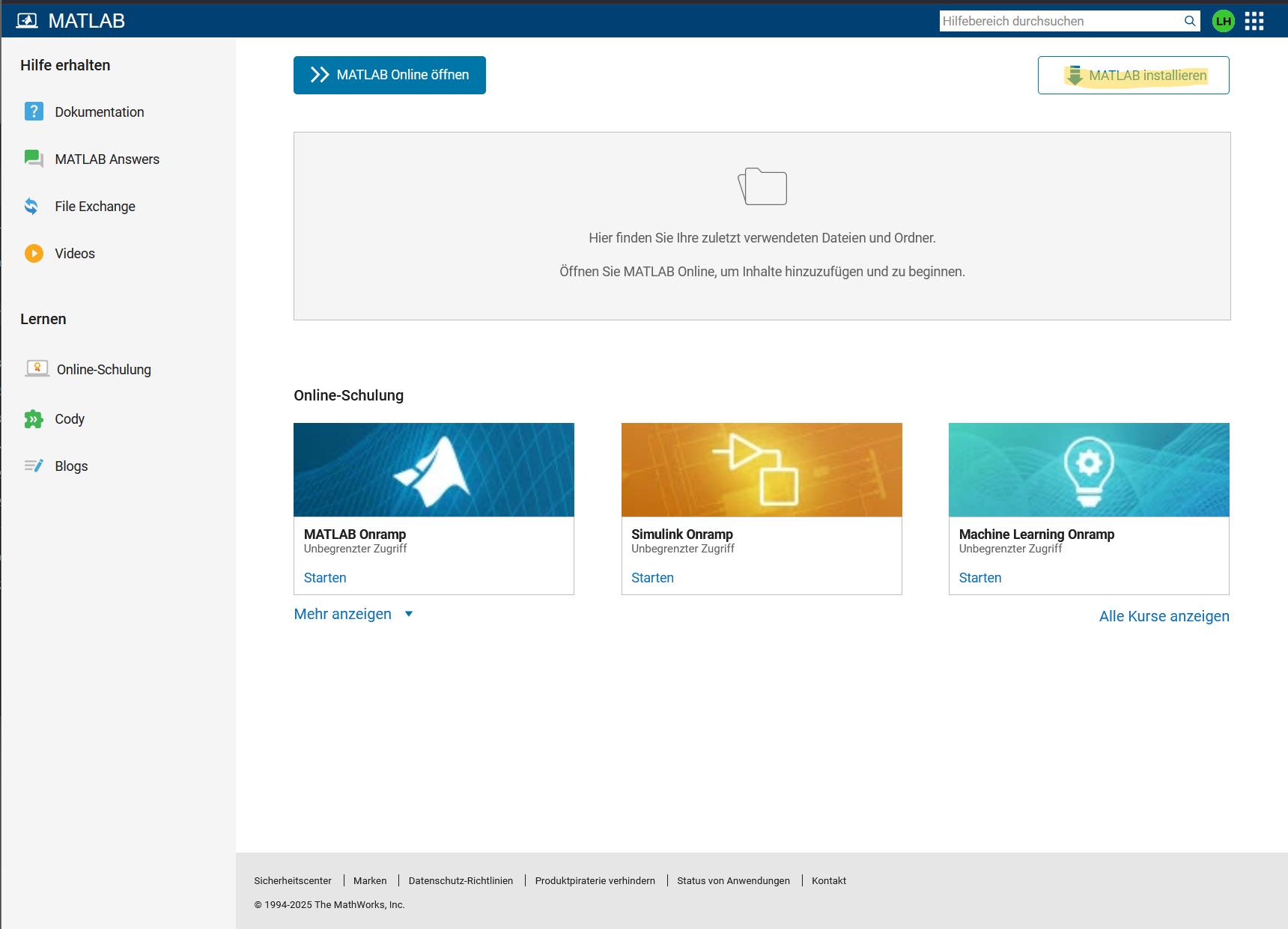
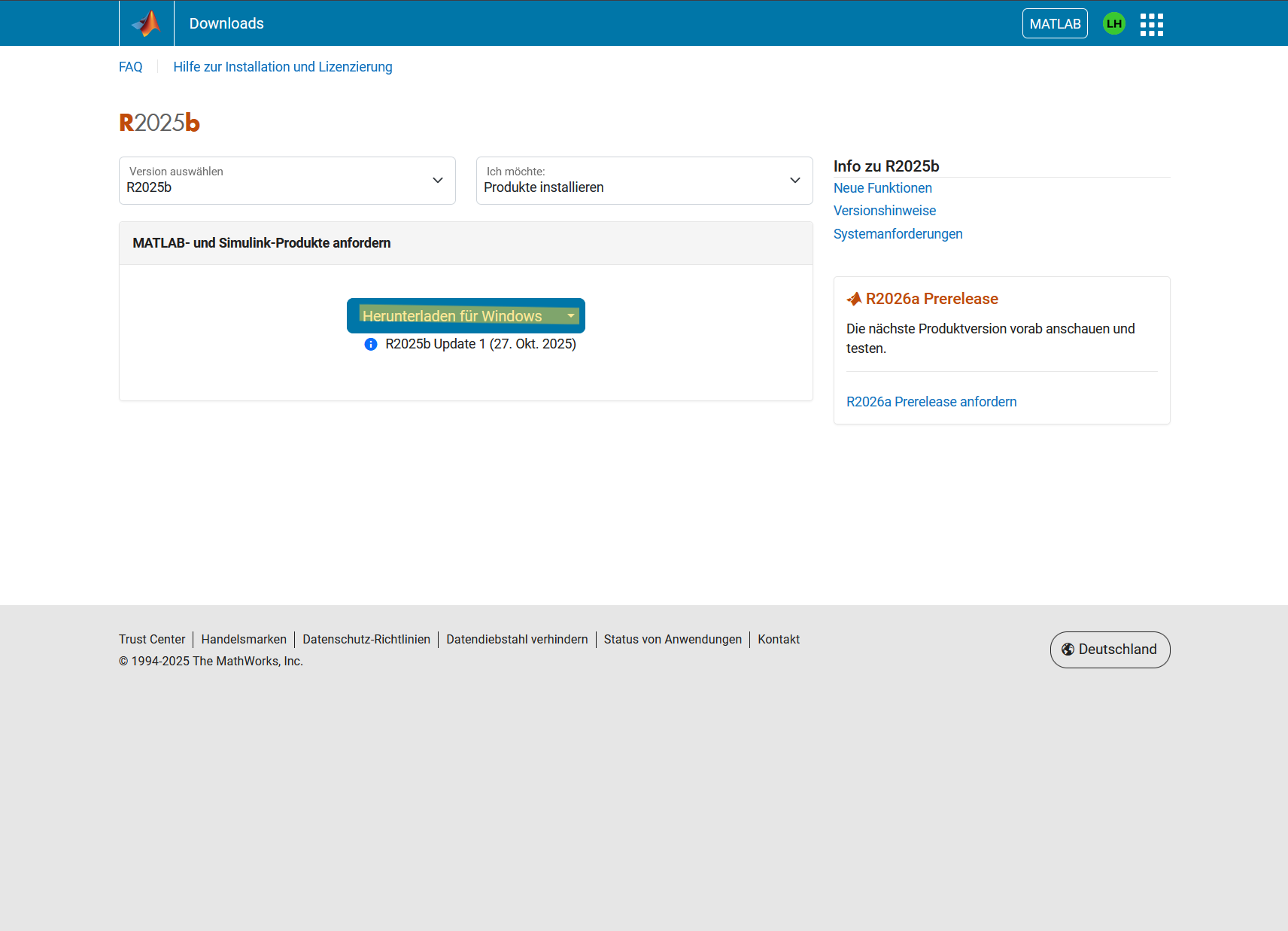
- Then download and run the installer
- Activate Matlab during installation with the account you created with Mathworks. During activation, select the computer account under which you want to start Matlab.
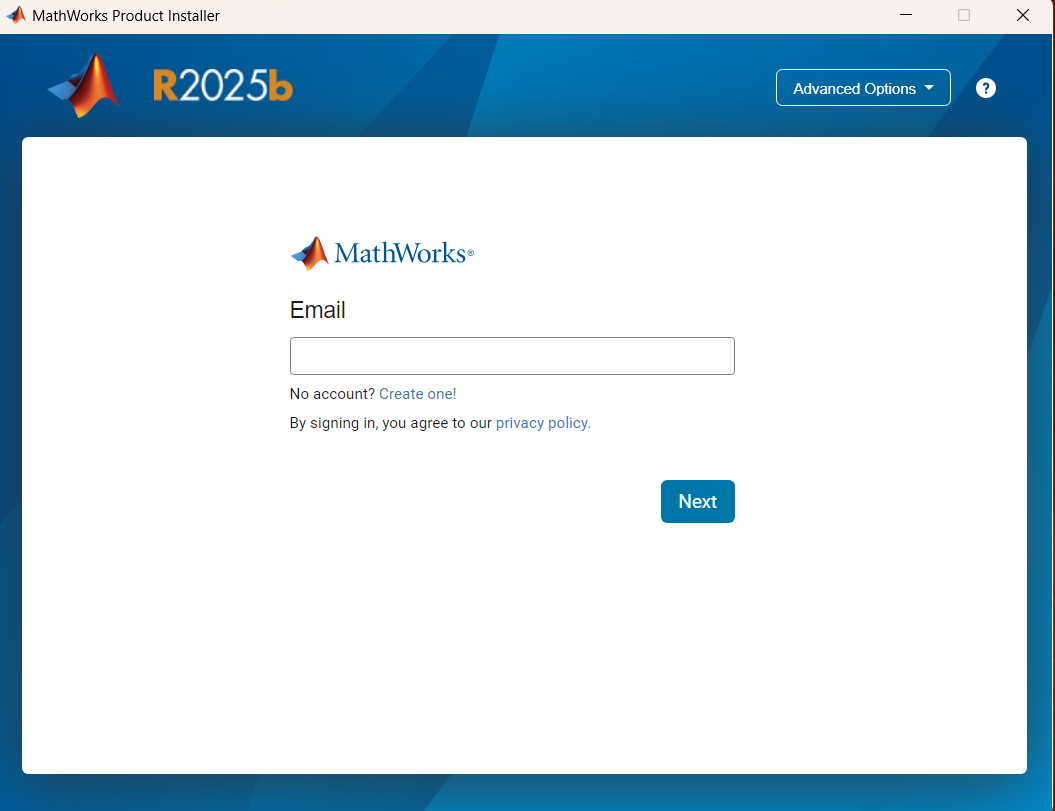
Now select in the setup file that you want to license Matlab by clicking on next. Then select the storage location. This can be left at the default path. In the next step, select which Matlab modules are to be installed. This depends on your personal requirements and what you need for your lecture. If you install all modules, the installation will have approximately 42GB. It is then advisable to create a shortcut in the "options" and to deselect the checkbox that MAtlab may access user data. Finally, simply click on "Begin Install"
Home drives (file server)
All students at RWU have access to a home drive. Here you can save data that you need during your studies.
Your home drive is created the first time you log on to a Windows PC at RWU. You can either log in to the PC pool of the computer center in room H104 or to a Windows pool of the faculties so that your home drive is created.
It will then be displayed under the drive letter H: each time you log in.
Please note: The following applies to students who started their studies before the 2019/20 winter semester:
A new home drive will also be created for you. From the second registration, you will be shown two drives until the end of 2019. You will find your home drive as usual under the drive letter H:, and you will also find your previous data under the drive letter O:. This additional drive (O:) will be switched off at the end of 2019. We ask you to copy the data you still need to the new drive (H:) so that the data is not lost.
The home drives are file shares. You can integrate them into your system using the following address.
Under Windows: Home drive = \\hswgt-fs1.hs-weingarten.de\HOME$\ACCOUNTNAME = H:
E.g.: \\hswgt-fs1.hs-weingarten.de\HOME$\mm-191817
Under Linux and MacOS: smb://hswgt-fs1.hs-weingarten.de/home$/
The account name does not need to be appended here.
You will be prompted to enter a login name and password in a pop-up message.
The login name is your account name supplemented by the characters "hswgt\" e.g. hswgt\ab-123456.
Outside the RWU, the home drive is only available via VPN. You can obtain further information or assistance during the semester from student support.
Surveys, sharing and planning appointments (DFN & SoSci Survey scheduler)
The following survey tools are available at RWU:
Scheduler
As an alternative to Dudle, which is no longer supported, the DFN offers a scheduler that you can use free of charge:
SoSci surveys
If you would like to conduct an online survey as part of your studies or your work at Ravensburg-Weingarten University of Applied Sciences, please use "SoSci", which you can find at the following link:
The non-commercial use of the software in the context of studies and research is free of charge. For further information, please refer to the link above.
Important: If a tool from another provider is to be used, this must first be approved by the university's data protection officer for legal reasons!
Computer pools
As a member of RWU, you have access to various computer rooms across the campus that you can use outside of lectures. The following rooms are available for this purpose:
| Building | Room | Room Description |
|---|---|---|
| B | B219 | 24 Windows PCs, usable outside the lectures taking place there |
| D | D004 | 24+ 1 lecturer, can be used outside the lectures taking place there |
| H | H104 | 36 + 1 Windows PCs, can be used outside the lectures taking place there |
| V | V011 V206 | 4 Windows PCs + 1 photocopier, can be used at any time Can be used outside the lectures held there. |
| K | K102 | 31 Linux PCs, can be used outside the lectures taking place there. |
Employees
Here you will find relevant topics of the data center for employees
Softphone - telephone availability for mobile working
Do you work on the move?
Then the "Alcatel-Lucent IP Desktop Softphone" (Softphone) software should be installed and configured on your PC.
This means that you can also be reached at your extension number when working on the move.
Softphone was developed based on the Alcatel-Lucent 8068s Premium DeskPhone and offers a user interface comparable to that of a normal RWU telephone.
How do I get the software?
Installation on your PC only takes a few minutes - however, preliminary work is required on the telephone system.
If you would like to use the softphone on your PC, please make an appointment with our helpdesk.
Simply send an e-mail with your request to rz-service@rwu.de and our colleagues will contact you to arrange an appointment for the setup.
What do I need to bear in mind when using the softphone?
If you are at RWU and your PC is connected to the RWU network, you only need to start the software locally on your PC. From then on you can be reached by telephone on your extension.
IMPORTANT:
If you want to use the softphone outside the RWU network, you need a VPN connection.
Quick guide to mobile working:
1. connect your PC to the Internet
2. Establish VPN tunnel
3. Start the softphone app
You can now be reached at your extension number on the PC.
If you have any questions or problems using the softphone, please contact the computer center helpdesk at the e-mail address/ticket system:
Thank you very much! Your computer center
Functions of your Exchange account
As an employee of RWU, you will receive a Microsoft Exchange account. This includes e.g:
- Your e-mails
- Your calendar
- Your notes
If we have developed instructions for the corresponding functions, you will find them here, in the corresponding subpages.
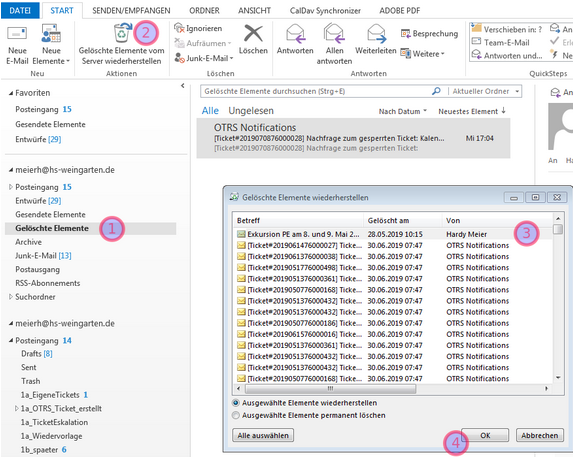
Your deleted mails are kept on the server for 60 days so that you can restore them if you have accidentally deleted something.
- Select the "Deleted items" folder
- In the "Start" toolbar, select the "Restore deleted items from the server" action (Outlook 2010 - Folders tab)
- Then select the item(s) in the pop-up window
- Confirm with OK.
If you want to retrieve your emails with the Thunderbird email client, you can do so. However, you must apply for IMAP activation of your account at rz-service@rwu.de.
IMPORTANT NOTE
The computer center does not offer any support for this!
The university standard is MS Outlook in conjunction with Exchange!
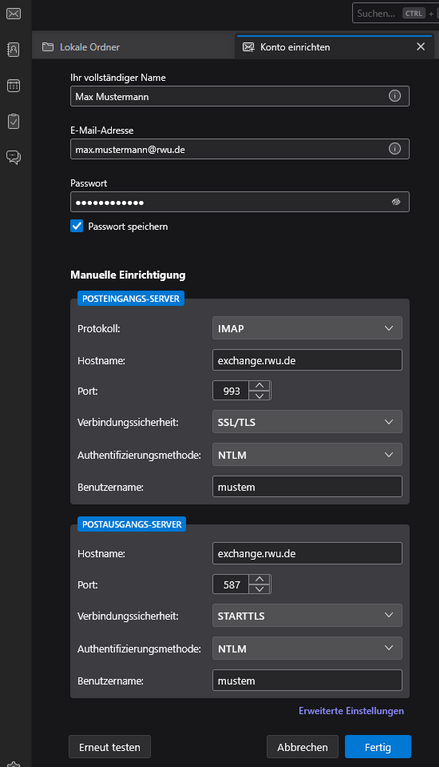
You must make the following settings in Thunderbird:
Please note: in the "Username" field, do NOT enter your email address and do NOT enter the email alias firstname.surname but your Windows login name (e.g.: mustem)!
If you want to retrieve your emails with the Thunderbird email client, you can do so. However, you must apply for IMAP activation of your account at rz-service@rwu.de.
IMPORTANT NOTE
The computer center does not offer any support for this!
The university standard is MS Outlook in conjunction with Exchange!
You must make the following settings in Thunderbird:
Please note: in the "Username" field, do NOT enter your email address and do NOT enter the email alias firstname.surname but your Windows login name (e.g.: mustem)!
Shared calendars are used in many places at RWU. Here are brief instructions on how to mount these calendars in Thunderbird:
The following requirements must be met:
Latest Thunderbird version (currently 68.x -69)
DavMail program as local CalDav proxy
Thunderbird AddOne Lightning (already installed in Thunderbird Standard)
- Download and install DavMail from the web
DavMail settings
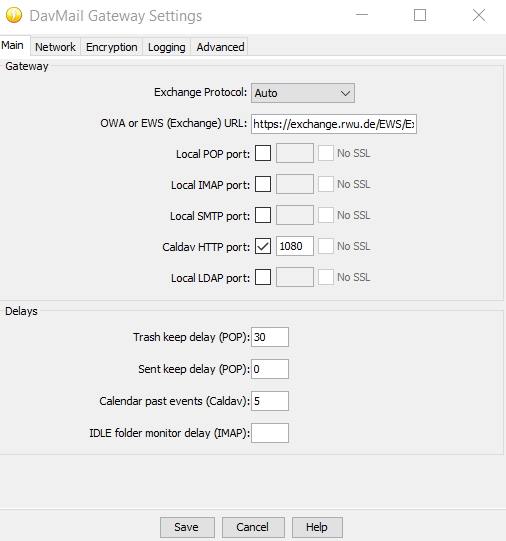
URL = https://exchange.rwu.de/EWS/Exchange.asmx
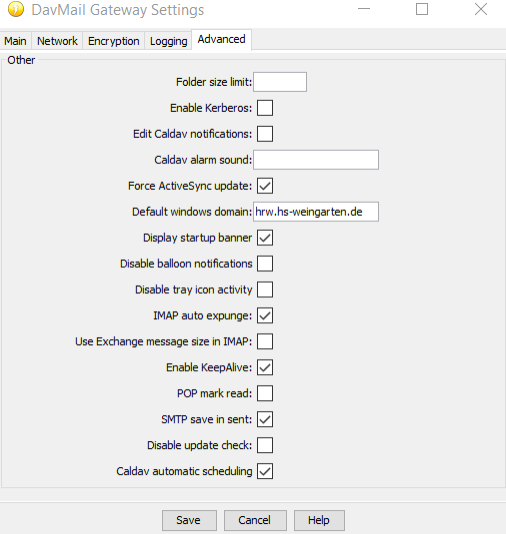
- Start Thunderbird and switch to the Calendar section
Right-click in the Calendar bar on the left
Click on "New calendar" in the menu
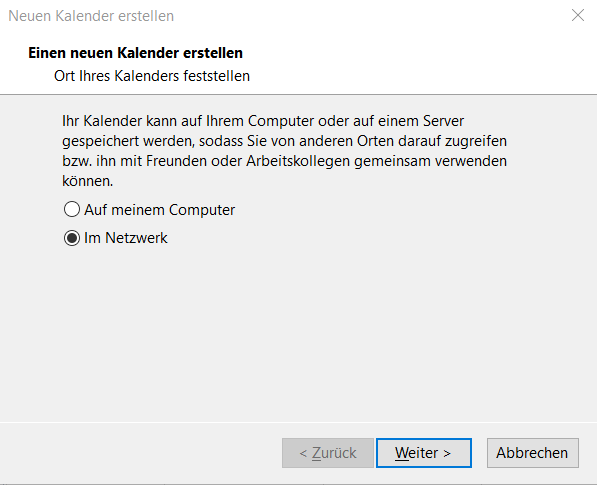
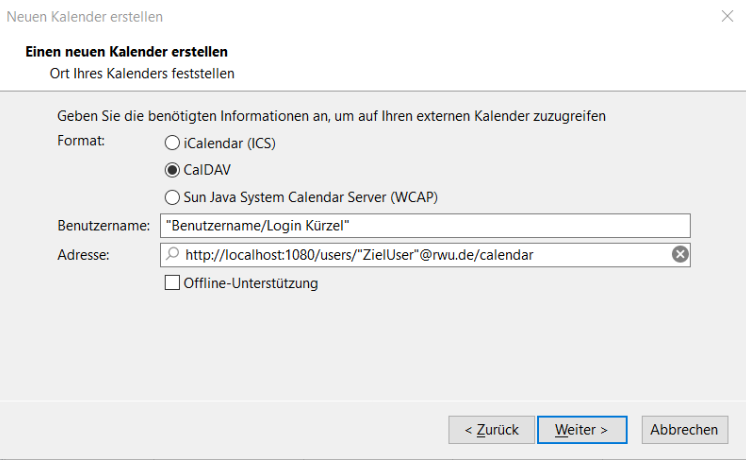
Example: http://localhost:1080/users/SVBKalender@hs-weingarten.de/calendar
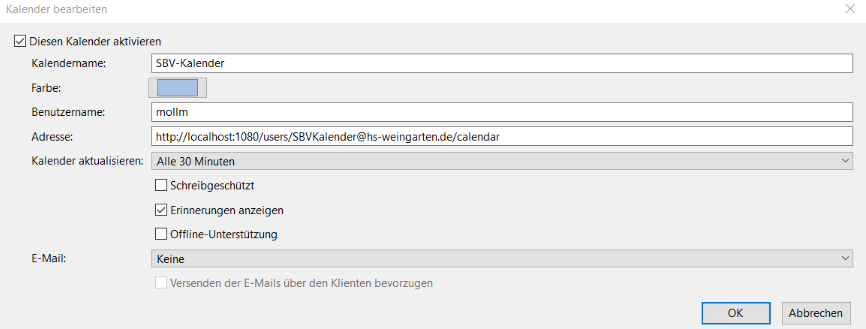
New calendar appears in the calendar section
Attention: Of course, you can only access calendars for which you are authorized by the RZ-Admin
MATLAB TAH licenses
The following steps are necessary to install MATLAB:
- Create a MathWorks account with your university email address at the following link.
- Open the License Center.
- Click on "Add license" in the upper right corner.
- Select "Link by activation key" and click "Next".
- In the next step, enter the following activation key: 04112-67171-28039-63781-06165
- Call up the download page to select the release.
- Start the download by clicking on the corresponding button.
- Double-click on the downloaded file to start the installation.
RWU - Email signature in Outlook
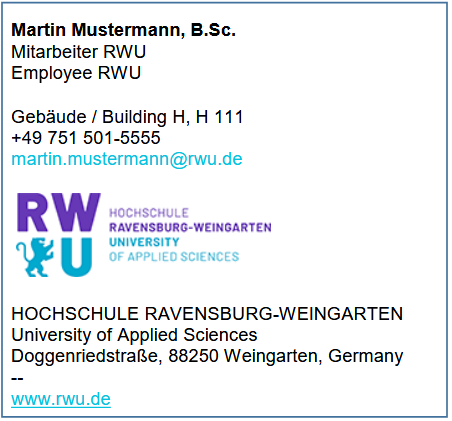
Here are some examples of the new RWU e-mail signatures.
Example signature with university logo:
Example signature in plain text form:
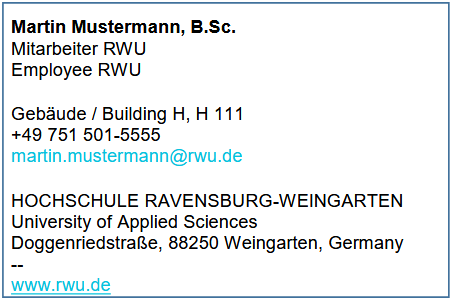
To create the signature in MS Outlook, go to File --> Options --> Email in the program.
Click on Signatures and you can create your own signature according to the examples above.
The logo to insert into your signature (right click on the graphic and select "Save graphic as..."):

bwSync&Share: Synchronization and collaboration
bwSync&Share is an online storage service for employees and students at universities and colleges in Baden-Württemberg. It helps you to use files flexibly and work efficiently in a team.
Central functions
- Data synchronization: Keep your files consistent on different devices (PC, laptop, smartphone, tablet). Clients are available for Windows, Mac, Android and iOS as well as a web interface.
- Share & edit data together: Invite other people to folders to share documents or work on projects at the same time. The storage quota is managed flexibly according to authorization.
Important information on data security (IT recommendation)
To ensure smooth operation and the security of your data, please note the following points:
- Synchronization is not a backup: bwSync&Share mirrors your data between your devices and the cloud. If a file is deleted locally, accidentally overwritten or encrypted by malware (e.g. ransomware), this state is synchronized immediately.
- Personal responsibility: In accordance with the operator's guidelines (KIT), users are responsible for the additional backup of their critical data.
- Recommendation: Back up important work results regularly on an independent medium or use the university network drives provided for this purpose for sensitive service data.
Support & further information
Detailed instructions and answers to frequently asked questions can be found directly in the help portal:
bwSync&Share Help & FAQs
Click on the following link to start the registration with bwSync&Share:
https://bwidm.scc.kit.edu/welcome/index.xhtml
- Activate the checkbox under "Remember home organization" by clicking on it
- Enter "Ravensbug-Weingarten University of Applied Sciences" in the search filter or scroll down to this entry under "Home organization".
- Select the entry "Ravensburg-Weingarten University of Applied Sciences" in the "Home organization" field by clicking on it
- Then click on the "Continue" button
- Enter your user name (RWU account) and password in the following window
This will open your personal directory where you can store your files and share them with other people.
You can access the bwSync&Share help page at
Antrag virtueller Server
Bitte den kompletten Antragstext ausgefüllt in einer Mail an rz-service(at)rwu.de (Ticketsystem) senden.
Antrag virtueller Server
Name, Vorname (bei Student*innen zusätzlich: betreuende/r Mitarbeiter*in / Professor*in):
Fachbereich / Institution:
Für folgenden Zweck benötige ich einen virtuellen Server:
Bitte bedenken Sie, dass auch die Ressourcen des RZ endlich sind, und reduzieren Sie Ihre Ressourcenwünsche auf das erforderliche Minimum.
Anforderungsprofil
Festplattenspeicher (in GB):
Arbeitsspeicher (in GB):
Anzahl der CPU-Kerne:
dauerhaft / zeitlich beschränkt:
Servername:
(kann vom RZ an die HRW Policy angepasst werden, z.B. fbe-servername)
Betriebssystem (Windows / Debian / Ubuntu / …) :
Sollen Dienste außerhalb des Hochschulnetzes zugänglich sein? Ja / Nein
Wenn ja, welche Ports?
Begründung / Erläuterung / Besondere Anforderungen:
Dringlichkeit:
Bitte den kompletten Antragstext ausgefüllt in einer Mail an rz-service(at)rwu.de (Ticketsystem) senden.
Nutzungshinweise:
Grundsätzliche Änderungen bzw. Erweiterungen des ursprünglich definierten Verwendungszweckes
müssen durch das RZ genehmigt werden.
Existieren die administrativen / technischen Ansprechkontakte nicht mehr und es ist keine
Kontaktmöglichkeit mehr gegeben wird der virtuelle Server ausgeschaltet und nach einer Frist von 3 Monaten gelöscht.
Verletzt der/die Anwender/innen wiederholt den im Antrag genehmigten Verwendungszweck oder RZ-Regelungen kann die Nutzungsberechtigung eingeschränkt oder entzogen werden.
Der Nutzer ist verpflichtet die Gast-Tools auf dem virtuellen Server regelmäßig zu aktualisieren und
den aktiven Status zu gewährleisten.
Der/die Anwender/innen ist für die Einhaltung des Verwendungszwecks des Servers sowie der
Sicherheit verantwortlich.
Bei Verstößen kann die Nutzungsberechtigung eingeschränkt oder entzogen werden. Gehen von einem virtuellen Server Störungen oder Gefahren für das Hochschulnetz aus, ist das RZ berechtigt, die Nutzung des virtuellen Servers ohne vorherige Rücksprache einzuschränken oder den virtuellen Server auszuschalten.
Snapshots sind nur für kurzzeitige Anpassungen, wie z.B. Updates, Upgrades, Testinstallationen
einzusetzen. Snapshots sind keine Backups! Große und lange Snapshot-Chains verursachen erhöhte
Prozessorlast und erhöhtes I/O bei der der Virtualisierung zugrunde liegenden Storage. Snapshots
können, wenn sie älter als 7 Tage sind, ohne Vorwarnung durch das RZ gelöscht werden, wenn sie den regulären Betrieb stören.
General services
The data center offers a wide range of services, from user accounts to webmailers and certification authorities.
In today's world, data security is a top priority in any IT environment.
Over time, more and more of our services will therefore be additionally secured with MFA two-factor authentication.
We will keep you up to date here on which services you need MFA for.
Even if you are not yet actively using any of these services, we still recommend that you register with our MFA portal. That way you are future-proof.
Password change tool, MFA and password manager
Here you will find the link if you want to change your password. It should be at least 12 characters long, contain upper and lower case letters, at least one number and one special character.
Please click here to go to the change page:
Further information on password managers (e.g. KeePass) and multi-factor authentication can be found on the RWU information security pages.
WLAN
Auf dem Campus der RWU werden im Wesentlichen drei verschiedene Funknetze ausgestrahlt:
- RWU
- eduroam
- RWU-Guest
zur Verfügung. Wichtig ist, dass Sie sich bei der Anmeldung an "RWU eduroam" mit dem Benutzername "ihr_benutzername@rwu.de" anmelden können. Z.B.: "bg-162144@rwu.de".
Jedes dieser Netze kann einem spezifischen Zweck zugeordnet werden.
"RWU" ist das Netz für die hochschulinterne Verwendung. Hier stehen Ihnen alle Dienste der RWU zur Verfügung.
"Eduroam" steht Studierenden und Hochschulangehörigen aus ganz Europa zur Verfügung. Da es für RWU-Externe offen ist, stehen nicht alle RZ-Dienste zur Verfügung.
"RWUGuest" richtet sich an Gäste, welche zum Beispiel im Rahmen einer Veranstaltung an die RWU kommen. Um sich zu verbinden, muss man lediglich die AGBs akzeptieren und kann das WLAN daraufhin verwenden.
Mehr über die einzelnen Funk-Netze erfahren Sie im jeweiligen Untermenüpunkt.
Das offizielle WLAN der Hochschule Ravensburg-Weingarten läuft unter der Bezeichnung "RWU".
Die Authentifizierung erfolgt über den normalen Hochschulaccount, die Datenübertragung ist automatisch verschlüsselt.
Sie können das WLAN "RWU" mit jedem WPA2/IEEE802.1x kompatiblen Gerät / Betriebssystem nutzen (Windows, Mac OS, Linux, IPhone, Android, etc...)
Falls es Probleme gibt, finden Sie im Folgenden für eine Auswahl von Betriebssystemen detaillierte Anleitungen für die Anmeldung an dem WLAN "RWU".
Weltweit sicher im WLAN: eduroam an der RWU
Die Hochschule Ravensburg-Weingarten (RWU) ist Teil des globalen eduroam-Netzwerks (kurz für Education Roaming).
Für Sie bedeutet das: Alle Angehörigen der RWU (Studierende sowie Mitarbeiterinnen und Mitarbeiter) können sich weltweit an tausenden teilnehmenden Universitäten, Hochschulen und Forschungseinrichtungen kostenlos in das dortige WLAN einwählen – einfach mit den eigenen RWU-Zugangsdaten. Sie benötigen keinen separaten Gast-Account an der jeweiligen Gasthochschule.
eduroam einrichten (Empfohlen & Sicher)
Um die Sicherheit Ihrer Daten zu gewährleisten und den Diebstahl von Passwörtern zu verhindern, muss die Einrichtung über den offiziellen Konfigurationsassistenten (CAT – Configuration Assistant Tool) erfolgen. Dieses Tool installiert automatisch die notwendigen Sicherheitszertifikate auf Ihrem Gerät.
- Rufen Sie die Webseite https://cat.eduroam.org/ auf.
- Wählen Sie die Hochschule Ravensburg-Weingarten als Ihre Heimateinrichtung aus.
- Laden Sie das passende Installationspaket für Ihr Betriebssystem (Windows, macOS, Android, iOS) herunter und führen Sie es aus.
- Folgen Sie den Anweisungen auf dem Bildschirm, um die sichere Einrichtung abzuschließen.
⚠️ Wichtiger Sicherheitshinweis: Schalten Sie bei einer manuellen Einrichtung niemals die Zertifikatsüberprüfung aus. Ohne diese Überprüfung könnten Angreifer manipulierte WLAN-Netzwerke aufbauen und Ihre Zugangsdaten abgreifen. Nutzen Sie daher bitte immer das oben verlinkte CAT-Tool.
Das Format bei der Anmeldung
Wenn Sie sich mit dem eduroam-Netzwerk verbinden (egal ob an der RWU oder an einer anderen Hochschule), müssen Sie Ihrem Benutzernamen die Kennung unserer Hochschule anhängen. Nur so weiß das System der Gasthochschule, dass Sie zur RWU gehören.
- Benutzerkennung: [Ihr-RWU-Benutzername]@rwu.de
- Passwort: Ihr ganz normales RWU-Hochschulpasswort
Beispiele:
- Mitarbeitende: Wenn Ihr Benutzername musterm lautet, geben Sie musterm@rwu.de ein.
- Studierende: Wenn Ihr Benutzername ab-201614 lautet, geben Sie ab-201614@rwu.de ein.
Einmal eingerichtet, verbindet sich Ihr Gerät in Zukunft weltweit an allen teilnehmenden Standorten automatisch und sicher mit dem eduroam-WLAN.
Für Gäste der RWU wird ein eigenes WLAN bereitgestellt. Um Zugang zum Netz "RWU-Guest" zu bekommen, wählen Sie einfach das WLAN aus. Sie werden automatisch in ihrem Webbrowser zu einer Seite weitergeleitet, dort müssen sie die AGBs akzeptieren und erhalten damit Zugang zum RWU-Guest WLAN
- Klicken Sie auf das WLAN Symbol rechts
ihrer Startleiste (Panel) und wählen Sie
„RWU“ aus.
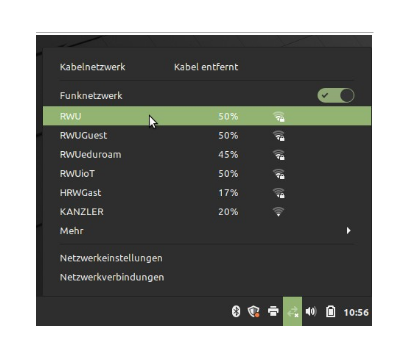
- Nehmen Sie die folgenden Einstellungen
vor:
◦ Sicherheit des Funknetzes:
WPA & WPA2 Enterprise
◦ Legitimierung:
Protected EAP (PEAP)
◦ Haken bei:
CA-Zertifikat ignorieren
◦ PEAP Version:
Automatisch
◦ Innere Legitimierung:
MSCHAPv2
◦ Benutzername:
RWU Benutzername (z.B.: ab-213478)
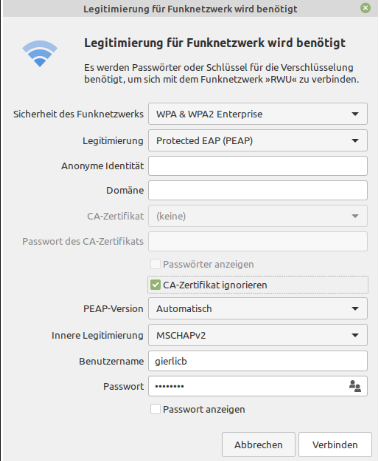
- Klicken Sie auf verbinden
- Öffnen Sie die WLAN Einstellungen
auf ihrem Gerät über
„Einstellungen -> Netzwerk/WLAN“ - Aktivieren Sie falls notwendig den
WLAN-Adapter „WLAN verwenden“. - Wählen Sie durch Antippen das
WLAN „RWU“ aus.
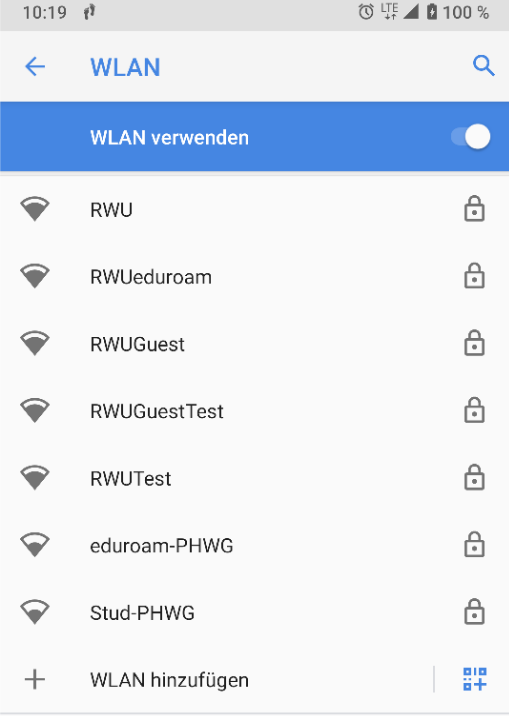
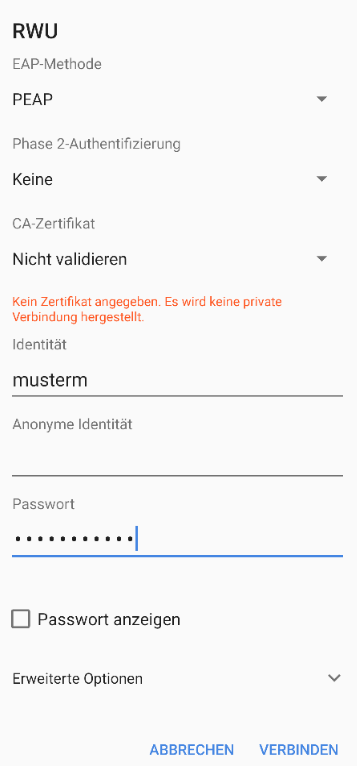
- Geben Sie wie unten im Bild zu
sehen die Verbindungsmethode,
ihren RWU-Benutzername
( z.B. ab-213456 oder musterm) und
ihr Passwort ein. - Bei CA-Zertifikat wählen Sie bitte
„nicht validieren“ bzw. „keines“ aus. - Tippen Sie dann auf „Verbinden“
VPN & MFA
Wenn Sie Ihren zweiten Faktor aktivieren möchten, gehen Sie bitte wie folgt vor:
- Stellen Sie sicher, dass Sie Zugang zu Ihrem Laptop oder PC sowie Ihr Token haben und sich im RWU-Netzwerk oder VPN befinden.
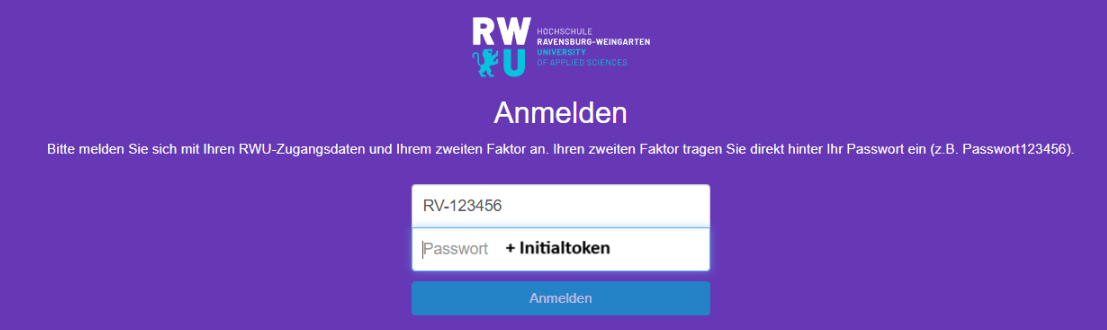
- Melden Sie sich unter https://mfa.rwu.de mit Ihren RWU-Zugangsdaten und dem Ihnen zugewiesenen Initialtoken, den Sie per Brief bekommen haben, an.
- Im Menü auf der linken Seite wählen Sie “Token aktivieren”, sodass sich eine neue Seite mit Eingabemöglichkeiten öffnet.
- Wählen Sie im Dropdown nun Ihre Entscheidung aus Schritt 1 und fahren Sie anschließend mit einer der folgenden Anleitungen fort, die zu Ihrer Entscheidung passt:
- “Authenticator-App auf dem Smartphone/Tablet aktivieren”
- “Hardware-Token (Yubikey) einrichten”
Authenticator-App auf dem Smartphone/Tablet aktivieren
Sie benötigen ein Smartphone sowie einen Laptop/PC. Betriebssysteme: iOS, iPadOS, Android
Empfohlene App: privacyIdea Authenticator
- Melden sie sich wie oben beschrieben unter https://mfa.rwu.de an.
- Im Menü auf der linken Seite „Token aktivieren“ auswählen
- Im Aktivierungsformular folgende Einstellungen vornehmen, dann auf “Token akivieren” klicken:
- Dropdown = TOTP: Zeitbasiertes Einmalpasswort
- OTP-Schlüssel auf dem Server erzeugen = ja (standard)
- OTP-Länge = 6 (standard)
- Zeitschritt = 30 (standard)
- Hash-Algorithmus = sha1 (standard)
- Auf der neuen Maske den QR-Code mit Ihrer Authenticator App einscannen, dann auf “Neuen Token aktivieren” klicken und in Ihrer App anschließend auf speichern klicken.
- Nun können Sie Ihr Software-Token für die MFA nutzen.
Was ist VPN?
Mit VPN (Virtual Private Network) stellen Sie eine sichere Verbindung mit dem Hochschulnetz (Wissenschaftsnetz) her, über die Sie Dienste benutzen können, die sonst nur innerhalb des Hochschulnetzes zugänglich sind. Einsatzgebiet ist üblicherweise der Zugang von Zuhause zum Hochschulnetz.
Mit VPN können Sie
- Nicht-öffentliche Lizenzserver der Hochschule benutzen
- Auf geschützte Server der Hochschule und der Fakultäten zugreifen
- Auf Terminalserver oder Laborrechner der Hochschule zugreifen, die nicht öffentlich zugänglich sind
- Nicht-öffentliche Hilfeseiten aufrufen (LSF Prüferfunktionen).
Sie benötigen VPN nicht, wenn Sie
- Ihre E-Mails über den Webmailer empfangen, senden oder bearbeiten wollen
- E-Mails über Thunderbird, Outlook oder einen anderen Mailclient empfangen und eingeschränkt versenden wollen
- Auf Datenbanken über REDI zugreifen wollen
OpenVPN installieren
Laden Sie das Installationsprogramm für Windows hier herunter:
(Alternativer Downloadlink für Windows ARM Geräte:
https://bwsyncandshare.kit.edu/s/SE2fsDGZpawccnT)
Für die Installation benötigen Sie unter Umständen Administratorrechte.
OpenVPN konfigurieren
Achtung: Im folgenden gehe ich davon aus, das Windows die Dateinamenserweiterungen nicht versteckt.
https://bwsyncandshare.kit.edu/s/46oNEoWYDCJ8e84 (Für Mitarbeiter:innen und Prfessor:innen)
https://bwsyncandshare.kit.edu/s/tFKQwywPqk3WWFi (Für Studierende und Lehrbeauftragte)
Kopieren Sie diese in das Konfigurationsverzeichnis von OpenVPN, i.d.R.
C:\Users\IHR-Benutzername\OpenVPN\config\
OpenVPN benutzen
Starten Sie das Programm wie üblich.
Verbinden
Nachdem Sie das Programm gestartet haben, befindet sich im Infobereich neben der Uhr das OpenVPN Symbol. Klicken Sie mit der rechten Maustaste auf das Symbol und wählen Sie "Verbinden" (Connect), um sich mit dem Hochschulnetz zu verbinden.
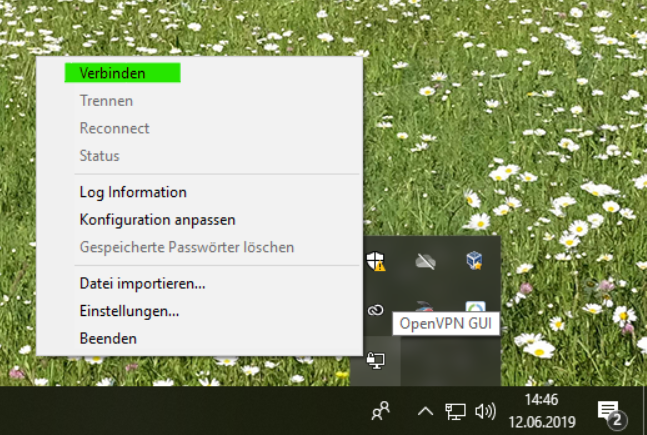
In dem nun erscheinenden Fenster geben Sie Ihr Passwort und den zweiten Faktor (sechstelliger Zahlencode) in das Passwortfeld ein. (Beispiel. Passwort!123456)
Nach dem erfolgreichen Verbindungsaufbau erscheint kurz ein Infofenster und das Symbol ist grün.
Trennen
Um die VPN Verbindung zu trennen, klicken Sie wieder mit der rechten Maustaste auf das Symbol und wählen Disconnect bzw. Trennen.
Mit OpenVPN können Sie einen Netzwerktunnel in das Hochschulnetz aufbauen, um diverse Dienste auch von Zuhause oder dem Wireless-LAN nutzen zu können.
Diese Anleitung beschreibt die Einrichtung unter dem Betriebssystem Linux am Beispiel von Ubuntu. Die einzelnen Schritte funktionieren im Allgemeinen auch unter anderen Distributionen.
Achtung: Diese Anleitung wurde noch nicht auf Ihre 100%ige Genauigkeit für aktuelle Systeme überprüft. Die genannten Links wurden aber nach bestem Wissen aktualisiert.
OpenVPN installieren
Installieren Sie unter Ubuntu mit folgendem Befehl das Paket openvpn. Alle Befehle sollten als root ausgeführt werden (z.B. mittels sudo):
apt-get install openvpn
OpenVPN konfigurieren
- Beantragen Sie bitte zuerst ihren zweiten Faktor für die Authentifizierung unter: https://mfa.hs-weingarten.de
Bitte laden Sie sich die folgende OpenVPN Konfigurationsdatei herunter und kopieren Sie diese nach /etc/openvpn/rwu-linux.ovpn
https://bwsyncandshare.kit.edu/s/46oNEoWYDCJ8e84 (Für Mitarbeiter:innen und Prfessor:innen)
https://bwsyncandshare.kit.edu/s/tFKQwywPqk3WWFi (Für Studierende und Lehrbeauftragte)
OpenVPN benutzen
Verbinden
Im Vordergrund:
# openvpn /etc/openvpn/rwu-linux.ovpn
Nun werden Sie nach Benutzname und Passwort gefragt.
Im Eingabefeld "Passwort" muss zusätzlich zu Ihrem normalen Passwort der zweite Faktor (sechstellige Zahl) angehängt werden: (Beispiel: PassWort!123456)
Trennen
# /etc/init.d/openvpn stop * Stopping virtual private network daemon(s)... * Stopping VPN 'hrw' [ OK ]
Networkmanager von Ubuntu
Es besteht zudem die Möglichkeit, OpenVPN in den Networkmanager von Ubuntu zu integrieren. Installieren Sie dazu einfach das Paket network-manager-openvpn-gnome. Sie können dann die obige Konfigurationsdatei importieren, die Zertifikate konfigurieren und darüber eine VPN Verbindung aufbauen.
VPN Verbindung erstellen
Klicken Sie im Networkmanager auf VPN-Verbindungen -> VPN Konfigurieren...
Drücken Sie auf "+"
--> "gespeicherte VPN-Konfiguration importieren" (siehe oben)
Im folgenden Dialog tragen Sie nur Ihren Benutzernamen ein, das Passwortfeld bleibt leer!
Fertig! Mit Auswahl der VPN-Verbindung stellen Sie nun die Verbindung her.
ACHTUNG!
Im Eingabefeld "Passwort" muss zusätzlich zu Ihrem normalen Passwort der zweite Faktor (sechstellige Zahl) angehängt werden: (Beispiel: PassWort!123456)
Um VPN auf Ihrem Mac zu nutzen benötigen Sie die folgenden Komponenten:
- Die Konfigurationsdatei für VPN an der RWU
- Die Software Tunnelblick:
Schrittweises Vorgehen bei der Installation von Tunnelblick
Herunterladen von Tunnelblick
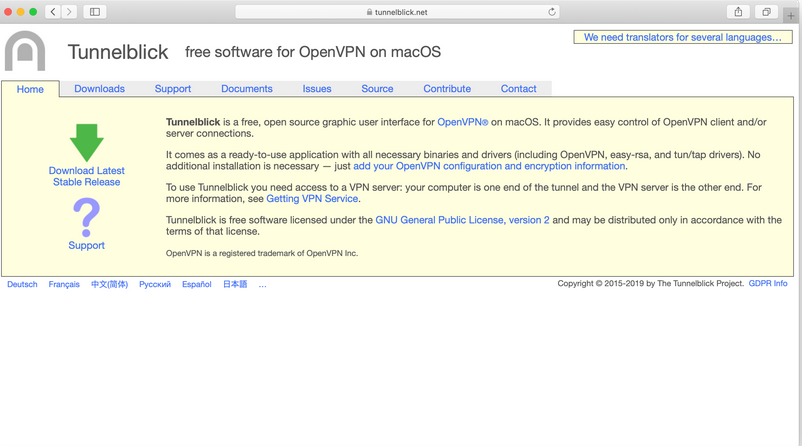
Öffnen Sie https://tunnelblick.net/ und klicken Sie dort "Download Latest Stable Release" um Tunnelblick herunter zu laden.
Das Programm installieren
Nach dem Download können Sie die heruntergeladene Datei öffnen. Starten Sie die Installation durch einen Doppelklick
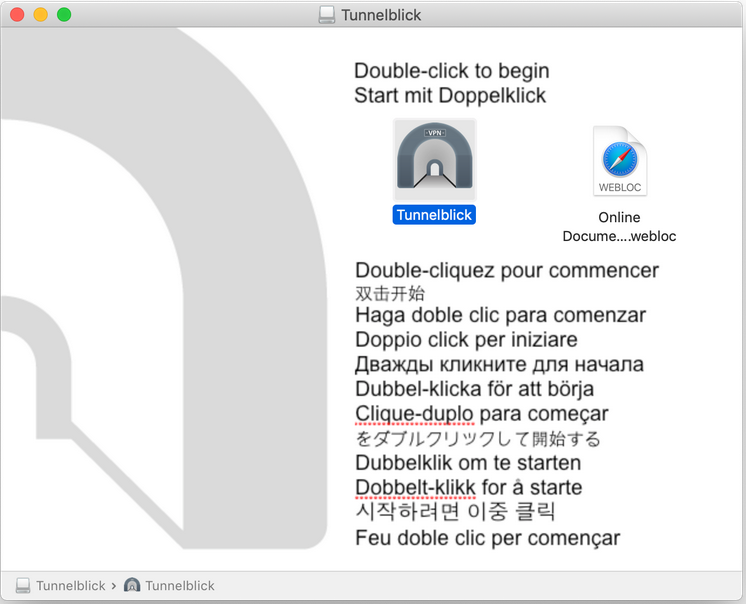
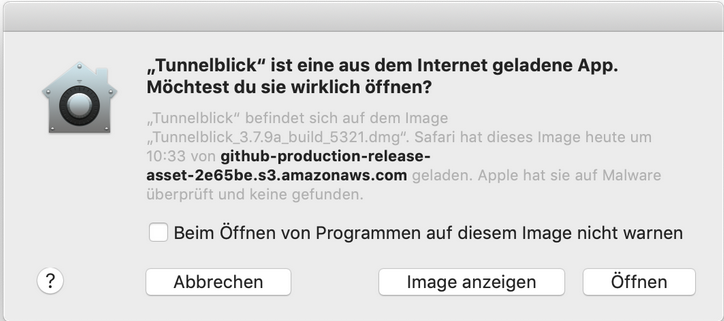
Unter Umständen müssen Sie einer Sichheitswarnung zustimmen.
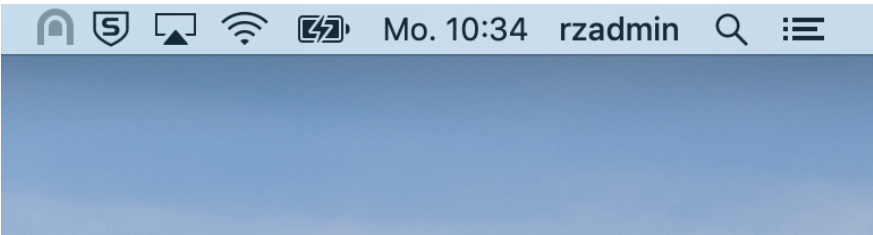
Nach der Installation finden Sie das Tunnelblick Icon oben rechts in der Menüleiste,
Die Konfiguration der RWU anwenden
Legen Sie einen neuen, leeren Ordner an und platzieren Sie dort die Konfigurationsdatei.
https://bwsyncandshare.kit.edu/s/46oNEoWYDCJ8e84 (Für Mitarbeiter:innen und Prfessor:innen)
https://bwsyncandshare.kit.edu/s/tFKQwywPqk3WWFi (Für Studierende und Lehrbeauftragte)
Ziehen Sie die Konfigurationsdatei auf das "Tunnelblick"-Icon (obere Leiste).
Die VPN Verbindung der Hochschule wird eingerichtet.
Klicken Sie auf "Nur für diesen Benutzer"
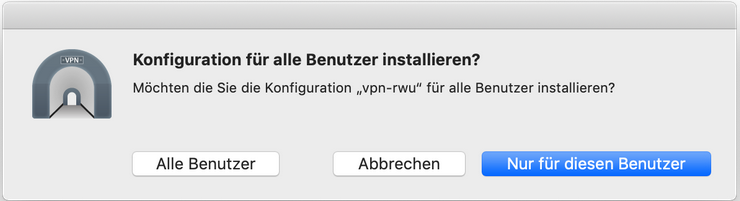
Mit den Anmeldedaten für Ihren Mac müssen sie die Änderungen bestätigen.
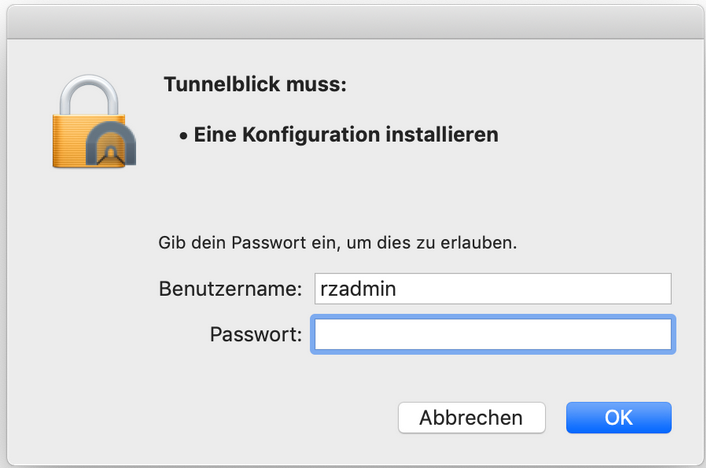
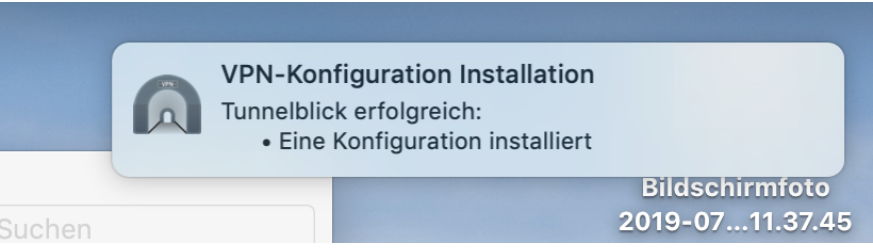
Eine Notification informiert Sie über die erfolgreiche Einrichtung.
Mit dem RWU VPN verbinden
Wenn Sie mit der Maus über das Tunnelblick Icon schweben (hover) erscheint das Verbindungsfenster. Hier können Sie sich mit einem Klick auf "Verbinden" den Tunnel aktivieren.
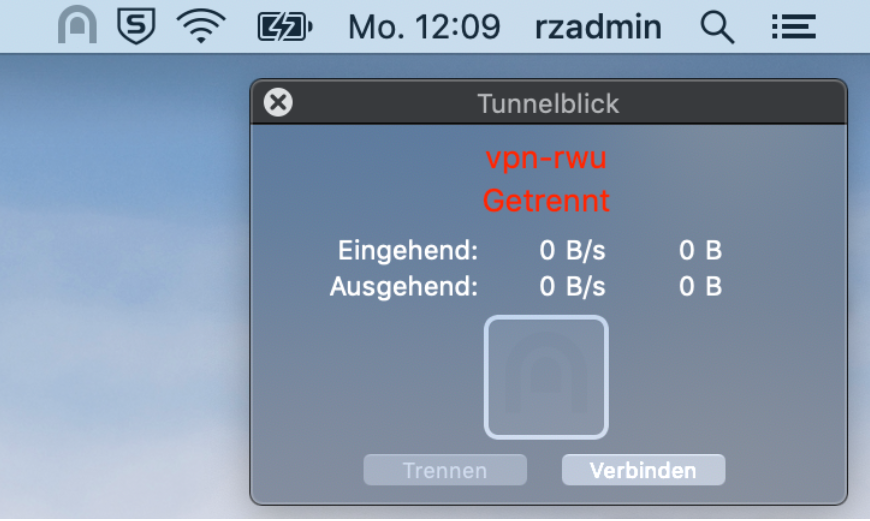
In dem nun erscheinenden Fenster geben Sie Ihr Passwort und den zweiten Faktor (sechstelliger Zahlencode) ein. (Beispiel. Passwort!123456)
- Installieren Sie folgende App: https://play.google.com/store/apps/details?id=de.blinkt.openvpn
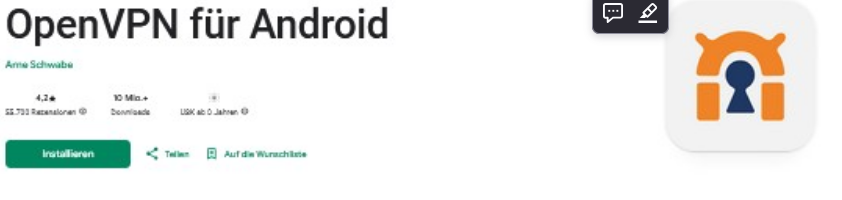
Laden Sie sich unter VPN ab 2025 Studierende und lehrbeauftragte die entsprechende Konfigurationsdatei herunter:
https://bwsyncandshare.kit.edu/s/46oNEoWYDCJ8e84 (Für Mitarbeiter:innen und Prfessor:innen)
https://bwsyncandshare.kit.edu/s/tFKQwywPqk3WWFi (Für Studierende und Lehrbeauftragte)
- Starten Sie die App "OpenVPN für Android"
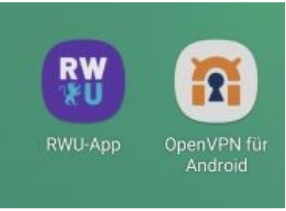
- Importieren Sie das heruntergeladene Profil:
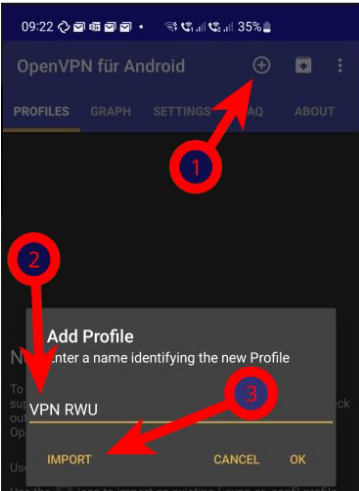
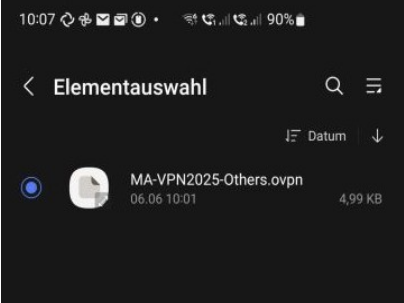
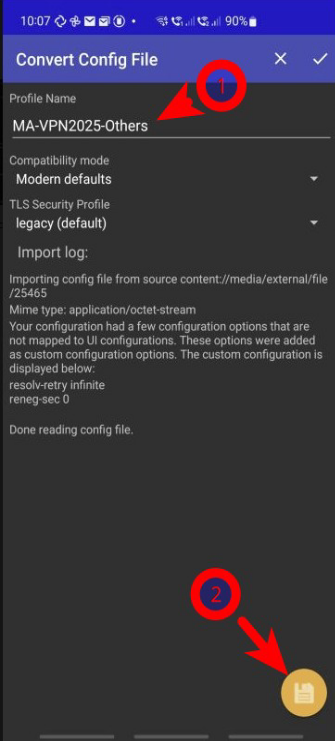
- Starten Sie die Verbindung durch Antippen des Profilnamens. Geben Sie Ihren Benutzernamen (RWU-Account) und im Passwortfeld (Passwort + MFA Code direkt nacheinander) ein. Tippen Sie dann auf OK
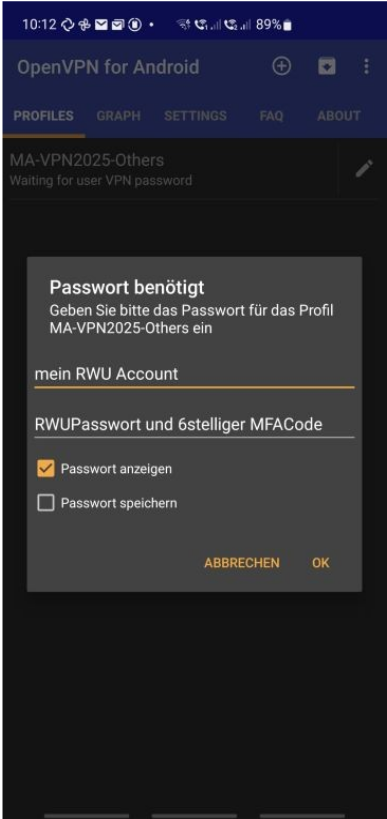
Diese Anleitung führt Sie durch die Konfiguration von OpenVPN auf Ihrem iPad, um Ihnen sicheren Zugriff auf die Netzwerkressourcen der Hochschule Ravensburg-Weingarten (RWU) zu ermöglichen. Befolgen Sie die Anweisungen Schritt für Schritt, um die VPN-Verbindung einzurichten.
Schritt 1: OpenVPN Connect herunterladen und installieren
- Öffnen Sie den App Store auf Ihrem iPad.
- Suchen Sie nach OpenVPN Connect.
- Tippen Sie auf die Laden-Schaltfläche neben OpenVPN Connect, um die App herunterzuladen und zu installieren.
Schritt 2: Die OpenVPN Connect App öffnen
- Öffnen Sie nach Abschluss der Installation die OpenVPN Connect App auf Ihrem Startbildschirm.
- Überprüfen Sie die Datenschutzrichtlinie und stimmen Sie ihr bei Aufforderung zu.
Schritt 3: Das VPN-Profil importieren
Um sich mit dem Netzwerk der RWU zu verbinden, müssen Sie die Konfigurationsdatei des VPN-Profils importieren.
- Laden Sie die Konfigurationsdatei der RWU herunter:
- Öffnen Sie Safari oder einen anderen Webbrowser auf Ihrem iPad.
- Laden Sie sich unter VPN ab 2025 Studierende und Lehrbeauftragte die Konfigurationsdatei herunter:
https://bwsyncandshare.kit.edu/s/46oNEoWYDCJ8e84 (Für Mitarbeiter:innen und Prfessor:innen)
https://bwsyncandshare.kit.edu/s/tFKQwywPqk3WWFi (Für Studierende und Lehrbeauftragte)
- Öffnen Sie die Datei nach dem Herunterladen mit OpenVPN Connect:
- Wählen Sie OpenVPN Connect als App aus, um die Datei zu öffnen, wenn Sie dazu aufgefordert werden.
- Falls die OpenVPN-App nicht als Option angezeigt wird, finden Sie die Datei in der Dateien-App und verwenden Sie die Teilen-Option, um sie in OpenVPN Connect zu öffnen.
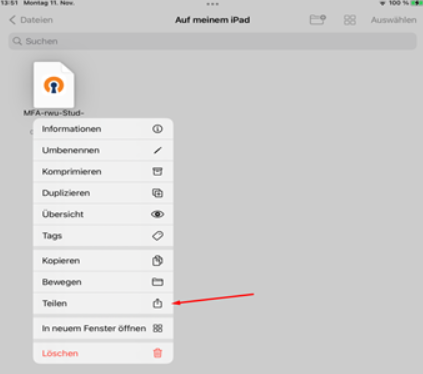
Schritt 4: Mit dem VPN verbinden
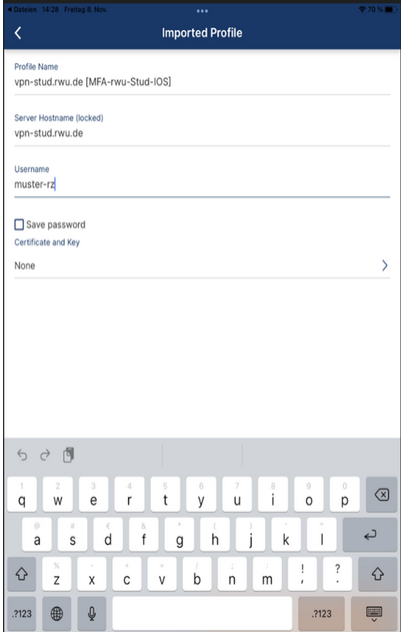
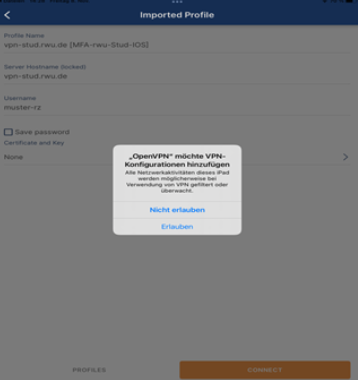
- Nachdem das Profil importiert wurde, sehen Sie in der OpenVPN-App eine Verbindungsoption für das RWU-VPN. (Tippen Sie auf Hinzufügen, um es hinzuzufügen.)
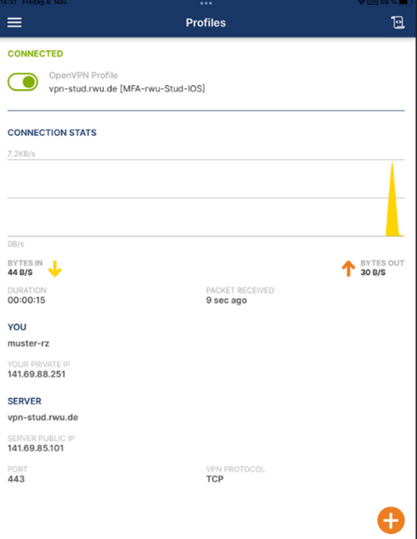
- Tippen Sie auf den Umschalter neben dem VPN-Profil, um eine Verbindung herzustellen.
- Geben Sie Ihre RWU-Zugangsdaten ein, wenn Sie dazu aufgefordert werden (verwenden Sie denselben Benutzernamen und dasselbe Passwort wie für andere RWU-Dienste).
- Nach erfolgreicher Authentifizierung sollte das VPN eine sichere Verbindung herstellen, die Ihnen Zugriff auf die RWU-Netzwerkressourcen ermöglicht.
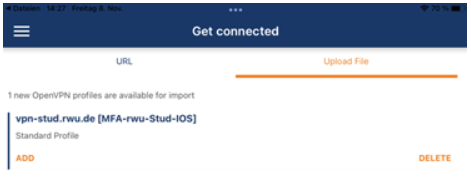
Tipps zur Fehlerbehebung
- Verbindungsprobleme: Stellen Sie sicher, dass Ihre Internetverbindung aktiv ist (WLAN oder mobile Daten). Überprüfen Sie außerdem, ob die Profildatei (MFA-rwu-Stud-IOS.ovpn) korrekt importiert wurde.
- Probleme mit Zugangsdaten: Vergewissern Sie sich, dass Sie den richtigen Benutzernamen und das richtige Passwort eingeben (Ihr aktuelles Passwort + den Code für die Zwei-Faktor-Authentifizierung). Hilfe zur Zwei-Faktor-Authentifizierung finden Sie unter MFA- Zwei-Faktor-Authentifizierung. Wenn Sie kürzlich Ihr RWU-Passwort geändert haben, verwenden Sie das aktualisierte Passwort.
Falls Probleme auftreten, wenden Sie sich an den IT-Helpdesk der RWU unter rz-service@rwu.de oder besuchen Sie uns in H204.
Das sollte den Einrichtungsprozess für iPad-Benutzer reibungslos gestalten. Lassen Sie mich wissen, falls noch weitere Anpassungen erforderlich sind!
Printing and copying system
Before the system can be used, it is necessary to register with the university account on the following portal:
1) Click on "Register" when using the system for the first time
2) Enter the card number (long number on the front of the card) of your university ID card in the corresponding field. NOT your matriculation number!
3) Enter your account name (e.g. am-211234 or muellerm) for domain login.
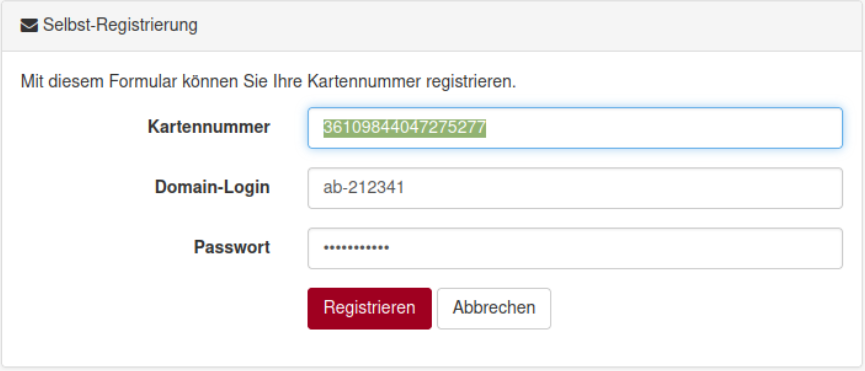
For further/later use of the portal, click on the "Login" button. You will then find your print jobs and scans there.
Before you can print from a computer, you must install a corresponding printer driver on the computer.
Here you will find the software for installing the printer driver for Windows, MacOS and Linux:
https://bwsyncandshare.kit.edu/s/5YyZFn9MffpNKiK?path=/
After installing the QPilot software, either the card number or the login data (university login) must be stored in the client.
We are currently working on the instructions for the common operating systems.
------------
The print data, wired or via WLAN, is not sent to a specific multifunctional device, but to a central print server. You can decide for yourself which multifunction printer you want to use for your print job (A4 // A3, single // double-sided, b/w // color ...).
Go to the multifunction printer of your choice and insert your HRW SmartCard into the reader (the direction does not matter, only the length ;-).
The print job, or several jobs if necessary, will then be displayed. Select the correct job, determine the correct options (paper size, paper orientation ...) if necessary, and initiate the printing process.
To manage your own print jobs directly on the print server, call up the following url from the campus network: https://rz-icprint.rwu.de
see: https://rz-serviceportal.rwu.de/campus-print-management-ic-print
(use your university account to log in).
You can manage your print and scan files using this program interface.
IMPORTANT: In order to be able to scan and print, the connection between the HRW SmartCard and the person must be made known to the central print server once:
To do this, enter the 17-digit number printed on the front of the HRW SmartCard.
Before you can print from a computer, you must install a corresponding printer driver on the computer.
Here you will find the software for installing the printer driver for Windows, MacOS and Linux:
https://bwsyncandshare.kit.edu/s/5YyZFn9MffpNKiK?path=/
After installing the QPilot software, either the card number or the login data (university login) must be stored in the client.
We are currently working on the instructions for the common operating systems.
------------
The print data, wired or via WLAN, is not sent to a specific multifunctional device, but to a central print server. You can decide for yourself which multifunction printer you want to use for your print job (A4 // A3, single // double-sided, b/w // color ...).
Go to the multifunction printer of your choice and insert your HRW SmartCard into the reader (the direction does not matter, only the length ;-).
The print job, or several jobs if necessary, will then be displayed. Select the correct job, determine the correct options (paper size, paper orientation ...) if necessary, and initiate the printing process.
To manage your own print jobs directly on the print server, call up the following url from the campus network: https://rz-icprint.rwu.de
see: https://rz-serviceportal.rwu.de/campus-print-management-ic-print
(use your university account to log in).
You can manage your print and scan files under this program interface.
IMPORTANT: In order to be able to scan and print, the connection between the HRW SmartCard and the person must be made known to the central print server once:
To do this, enter the 17-digit number printed on the front of the HRW SmartCard.
All multifunction devices are designed as color copiers. You decide whether your print job is printed in color or black and white by pressing the corresponding button on the touchscreen control panel.
If you want to make private copies, press the "Private copy" button on the billing control panel before the copying process.
The copying costs of professors, lecturers and employees are booked directly to cost centers.
Students continue to copy via the electronic wallet of their RWU SmartCard.
6 Cent A4 b/w; 12 Cent A3 b/w;
20 Cent A4 colored; 40 Cent A3 colored
Note: In order to be able to print, the connection between HRW-SmartCard and person must be made known to the central print server once. For professors, lecturers and employees, this is done in the technical operations (operations office).
To scan, place your original on the glass surface of the multifunctional device and initiate the scanning process. You will then be prompted to place another original on top and scan it. All pages are combined into a single file and sent to the central print server.
Once your original(s) have been scanned, end the scanning process by confirming the prompt on the touchscreen.
You can access your file with the scans within the campus area via a web browser and the url:
from the central print server (use your university account to log in).
The scans are stored on the central print server and are managed with a program interface accessible via the above url.
When scanning via the electronic wallet, 1 cent is debited per scan.
Note: In order to be able to scan and print, the connection between HRW SmartCard and person must be made known to the central print server once. See the general information at
For professors, lecturers and employees , this is done in the technical operations department (operations office). The cost center is stored on the card there.
At RWU you have an e-mail inbox at your disposal. Various addresses are linked to your mailbox. These are mainly the address benutzername@rwu.de , which is uniquely assigned to you, and the so-called alias vorname.nachname@rwu.de. The latter is a "nickname", so to speak, i.e. a type of forwarding. The mailbox is permanently linked to your user name.
Please note that some of the mailing lists are only accessible from the inside. E-mails sent from outside will be rejected. To be able to use the distribution lists from outside, you must send the e-mail via
- send a webmailer
- deliver to our mail server
Students
Every enrolled student is included in automatic mailing lists.
Students by faculty
Students department E
fbe-stud
|-- stud-dbm
|-- stud-dmm
|-- stud-em
|-- stud-ai
|-- stud-ei
|-- stud-md
|-- stud-wi
|-- stud-wp
|-- stud-mm
|-- stud-mw
|-- stud-emm
|-- stud-wb
|-- stud-io
|-- stud-in
|-- stud-ip
Students Faculty M
fbm-stud
|-- stud-bbm
|-- stud-eu
|-- stud-ft
|-- stud-fp
|-- stud-m
|-- stud-uvm
|-- stud-pem
Students Department T
fbt-stud
|-- stud-bm
|-- stud-bwu
|-- stud-me
|-- stud-tm
|-- stud-pe
|-- stud-pt
|-- stud-pw
|-- stud-bem
|-- stud-uvm
|-- stud-te
|-- stud-tmo
Students Department S
fbs-stud
|-- stud-agm
|-- stud-go
|-- stud-pf
|-- stud-s
|-- stud-sgm
|-- stud-stm
Students by degree program
studierende
|--stud-agm
|--stud-ai
|--stud-ap
|--stud-bbm
|--stud-bem
|--stud-bm
|--stud-bwu
|--stud-dbm
|--stud-dmm
|--stud-emm
|--stud-ei
|--stud-em
|--stud-eu
|--stud-fp
|--stud-ft
|--stud-go
|--stud-in
|--stud-ip
|--stud-m
|--stud-md
|--stud-me
|--stud-mm
|--stud-mw
|--stud-pe
|--stud-pem
|--stud-pf
|--stud-pt
|--stud-pw
|--stud-s
|--stud-stm
|--stud-sgm
|--stud-te
|--stud-tm
|--stud-tmo
|--stud-tw
|--stud-uvm
|--stud-wb
|--stud-wi
|--stud-wp
Courses and facilities in the LSF
- LSF distribution list
Staff and central institutions
Most typical distribution lists are maintained automatically via the settings in LSF. For example, if a new employee in LSF is assigned the function "Academic employee" for the institution "Study program AI", he or she is automatically included in the corresponding distribution lists (ai-assi@ and thus fbe-assi@ and thus fbe@ and thus hs@).
Overview of distribution structures
hs
|--fbe
| |--fbe-prof
| | | |-- ai-prof (in LSF the function "Professor" for the institution "degree program AI")
| | |-- dbm-prof (...)
| | |-- dmm-prof
| | |-- ei-prof
| | |-- em-prof
| | |-- eem-prof
| | |-- emm-prof
| | |-- in-prof
| | |-- io-prof
| | |-- ip-prof
| | |-- md-prof
| | |-- mm-prof
| | |-- mw-prof
| | |-- wb-prof
| | |-- wi-prof
| | |-- wp-prof
| |--fbe-assi
| | |-- ai-assi (in LSF the function "Akad. MA." or "Techn. Ang." for the institution "Stg. AI")
| | |-- dbm-assi (...)
| | |-- dmm-assi
| | | |-- ei-assi
| | | |-- em-assi
| | |-- eem-assi
| | |-- emm-assi
| | |-- in-assi
| | |-- io-assi
| | |-- ip-assi
| | |-- md-assi
| | |-- mm-assi
| | |-- mw-assi
| | |-- wb-assi
| | |-- wi-assi
| | |-- wp-assi
| | |--lsf-einrichtung-FBE-funktion-AKADMA(at)lists.hs-weingarten.de
| | |--lsf-einrichtung-FBE-funktion-TECHANG(at)lists.hs-weingarten.de
| |--fbe-verw (in LSF the function "Verwaltungsangestellte(r) für die Einrichtung "Fakultät E")
| |--fbe-sonst
| |--fbesekr
|--fbt
| |--fbt-prof
| | |-- tm-prof
| | |-- bm-prof
| | | |-- bem-prof
| | |-- bpm-prof
| | |-- p-prof
| | |-- osm-prof
| | |-- te-prof
| | |-- tmo-prof
| | |-- tw-prof
| | |-- bwu-prof
| | |-- pe-prof
| | |-- pt-prof
| | |-- pw-prof
| | |-- me-prof
| | |-- eu-prof
| |--fbt-assi
| | |-- tm-assi
| | |-- bm-assi
| | | |-- bem-assi
| | |-- bpm-assi
| | |-- p-assi
| | |-- osm-assi
| | | |-- te-assi
| | |-- tmo-assi
| | |-- tw-assi
| | |-- bwu-assi
| | |-- pe-assi
| | |-- pt-assi
| | |-- pw-assi
| | |-- me-assi
| | |-- eu-assi
| | |--lsf-einrichtung-FBT-funktion-AKADMA(at)lists.hs-weingarten.de
| | |--lsf-einrichtung-FBT-funktion-TECHANG(at)lists.hs-weingarten.de
| |--fbt-verw
| |--fbt-sonst
|--fbm
| |--fbm-prof
| | |--m-prof
| | |--pem-prof
| | |--ft-prof
| | |--fp-prof
| |--fbm-assi
| | |--m-assi
| | |--pem-assi
| | | |--ft-assi
| | |--fp-assi
| | |--lsf-einrichtung-FBM-funktion-AKADMA(at)lists.hs-weingarten.de
| | `--lsf-einrichtung-FBM-funktion-TECHANG(at)lists.hs-weingarten.de
| |--fbm-verw
| `--fbm-sonst
|--fbs
| |--fbs-prof
| | |--s-prof
| | |--go-prof
| | | |--pp-prof
| | |--pf-prof
| | |--stm-prof
| | |--sgm-prof
| | |--gfm-prof
| |--fbs-assi
| | |--s-assi
| | |--go-assi
| | | |--pp-assi
| | |--pf-assi
| | |--sgm-assi
| | |--stm-assi
| | |--gfm-assi
| | |--lsf-einrichtung-FBS-funktion-AKADMA(at)lists.hs-weingarten.de
| | |--lsf-facility-FBS-function-TECHANG(at)lists.hs-weingarten.de
| |--fbs-verw
| |--fbs-sonst
|--rz
|--verw (in LSF belonging to the institution "Administration")
|--tb
|--aww-all
|--international-office
|--iaf-employee
|--language-center
|--ledoasys
|--ak-elearning
|--ebusiness-lotse-employee
|--sustainability
|--lsf-institution-OEARBEIT(at)lists.hs-weingarten.de
|--projects
hs-prof
|--fbe-prof
| |--ai-prof
| |--wi-prof
| |--...
|--fbm-prof
|--fbt-prof
|--fbs-prof
hs-assi
|--fbe-assi
| |--ai-assi
| |--wi-assi
| |--...
|--fbm-assi
|--fbt-assi
|--fbs-assi
| |--lsf-facility-FBE-function-AKADMA(at)lists.hs-weingarten.de
| |--lsf-facility-FBE-function-TECHANG(at)lists.hs-weingarten.de
hs-sonst
|--fbe-sonst
| |--fbesekr
|--fbm-sonst
|--fbt-sonst
|--fbs-sonst
hs-mitarb
|--fbe-mitarb
| |--fbe-assi
| |--fbe-sonst
|--fbt-mitarb
| |--fbt-assi
| |--fbt-sonst
|--fbm-mitarb
| |--fbm-assi
| |--fbm-sonst
|--fbs-mitarb
| |--fbs-assi
| |--fbs-sonst
|--rz
|--verw (in LSF belonging to the institution "Administration")
|--tb
|--aww-all
|--international-office
|--iaf-mitarbeiter
|--sprachenzentrum
|--ledoasys
|--ak-elearning
|--ebusiness-lotse-mitarbeiter
|--nachhaltigkeit
|--projekte
lbe
|-- fbe-lbe
| |--ai-lbe
| |--wi-lbe
| |--...
|-- fbm-lbe
|-- fbs-lbe
|-- fbt-lbe
|-- fsp-lbe
Exchange for employees and professors
Webmail for students and lecturers
With the HRW webmailer you always have your e-mails under control:
E-mail access data at a glance (for students and lecturers)
Your primary e-mail addresses:
- benutzername@rwu.de (your actual account, e. g. ab-201234@rwu.de)
- vorname.nachname@rwu.de (only an alias, not a separate account)
- For username/user, please only ever enter your login(ab-201234) .
IMAP server (inbox):
mail.hs-weingarten.de
Encryption is supported with SSL (port 993) and TLS (port 143) .
SSL encryption is required from outside the university network.
SMTP server (outgoing mail):
mail.hs-weingarten.de
VSecurity type with SSL/TLS (port 587 or port 465) is supported.
Secure authentication is NOT supported (SPA), only authentication via plain text works.
Sending e-mails from outside the university network is only possible to a limited extent (max. 20 e-mails per hour) for security reasons!
User name/password: RWU account (ab-201234) and RWU password.
How do I link my mail program with the university address book?
Data at a glance
The RWU address book - An OpenLDAP
LDAP is a protocol that allows you to access the university's directory service. External access must be via VPN or SSH tunnel.
- Server: ldap.hs-weingarten.de
- Basic DN: ou=people,dc=fh-weingarten,dc=de
- Search level: no matter, one or sub
- Port number: 389 (unencrypted), 636 (SSL/TLS)
- Bind-DN: uid="yourusername",ou=people,dc=fh-weingarten,dc=de (or leave blank)
- Search filter:
- All persons: (gidNumber=*) (or leave blank)
- All employees and lecturers: (|(gidNumber=1001)(gidNumber=1004))
- Students only: (gidNumber=1000)
under the link:
https://pm-quarantine.hs-weingarten.de/
you can request individual access to your personal quarantine folder. The link will then be sent directly to your mailbox by e-mail and is valid for 31 days.
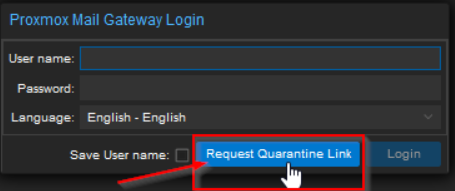
- In the "Proxmox Mail Gateway Login" window DO NOT enter any data - just click on the "Reguest Quarantine Link" button
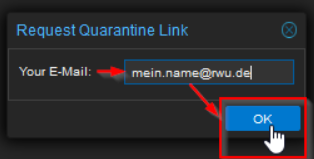
- Enter the email address in the following window and click on "OK"
After a short wait, you will receive your personal link in your mailbox.
Please note:
- The link is valid for 31 days
- In the standard view, only the emails from the last seven days are displayed. You can adjust this period accordingly. (Edit the date in the "since" line at the top left)
After opening, click on the mail in question and then click on "Deliver" in the top right-hand window area to move the mail to your mailbox.
You can use your personal certificate to sign and encrypt emails.
This is possible with many clients. We have put together instructions for MS Outlook here:
Do you know an RWU distribution address and want to find out who receives the e-mails sent to it? You can use the RWU mail splitter to find out exactly how an e-mail is distributed.
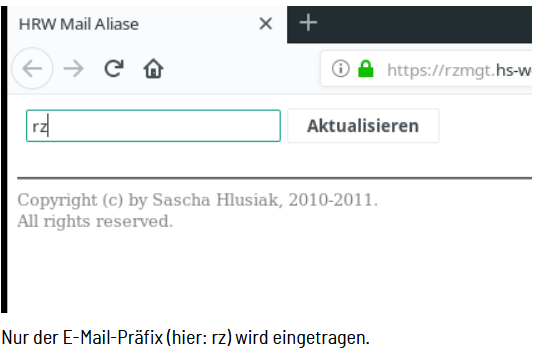
Enter the relevant prefix in the form (e.g. hs).
You can find the mail splitter here:
Exemplary use of the unscrambler
Using the mailing list "rz(at)hs-weingarten.de" as an example, we will show you how the tool works and how to read the results.
Student representatives
General Student Committee (ASTA)
- All members
- asta(at)rwu.de
- Ski trip registration
- asta-skiausfahrt(at)rwu.de
All student councils
student councils(at)rwu.de
Faculty of Electrical Engineering and Computer Science (fbe-stud@)
Applied Computer Science (Bachelor)
- stud-ai(at)rwu.de
Electrical Engineering and Information Technology (Bachelor)
- stud-ei(at)rwu.de
Computer Science/Electrical Engineering PLUS Teacher Training 1
- stud-ip(at)rwu.de
Business Informatics and E-Business (Bachelor)
- stud-wi(at)rwu.de
Business Informatics PLUS (Bachelor)
- stud-wp(at)rwu.de
Electrical Engineering / Physics PLUS (Bachelor)
- stud-ep(at)rwu.de
Electromobility and Energy Management (Bachelor)
- stud-em(at)rwu.de
Computer Science (Master)
- stud-in(at)rwu.de
Mechatronics (Master)
- stud-mm(at)rwu.de
Business Informatics (Master)
- stud-mw(at)rwu.de
Digital Business (Master)
- stud-dbm(at)rwu.de
Media Design and Digital Design (Bachelor)
- stud-md(at)rwu.de
Internet and Online Marketing (Bachelor)
- stud-io(at)rwu.de
Business Informatics (Bachelor)
- stud-wb(at)rwu.de
Electrical Engineering and Embedded Systems (Master)
- stud-emm(at)rwu.de
Faculty of Mechanical Engineering (fbm-stud@)
Automotive Engineering (Bachelor)
- stud-ft(at)rwu.de
Automotive Engineering PLUS (Bachelor)
- stud-fp(at)rwu.de
Mechanical Engineering (Bachelor)
- stud-m(at)rwu.de
Product Development (Master)
- stud-pem(at)rwu.de
Environmental and Process Engineering (Master)
- stud-uvm(at)rwu.de
Faculty of Technology and Management (fbt-stud@)
Business Administration and Management (Bachelor)
- stud-bm(at)rwu.de
Business Administration and Entrepreneurship (Master)
- stud-bwu(at)rwu.de
Technology Management (Bachelor)
- stud-tm(at)rwu.de
Physical Engineering (Bachelor)
- stud-p(at)rwu.de
International Business Management (Master)
- stud-bem(at)rwu.de
Optical Systems Engineering (Master)
- stud-osm(at)rwu.de
Technology Development (Bachelor)
- stud-te(at)rwu.de
Technology Management and Optimization (Master)
- stud-tmo(at)rwu.de
Energy and Environmental Engineering (Bachelor)
- stud-eu(at)rwu.de
Industrial Engineering (Technology Management) (Bachelor)
- stud-tw(at)rwu.de
Physical Engineering (Technology Development) (Bachelor)
- stud-pe(at)rwu.de
Faculty of Social Work, Health and Nursing (fbs-stud@)
Social Work (Bachelor)
- stud-s(at)rwu.de
Health Economics (Bachelor)
- stud-go(at)rwu.de
Nursing Education (Bachelor)
- stud-pp(at)rwu.de
Nursing (Bachelor)
- stud-pf(at)rwu.de
Management in Social and Health Care (Master)
- stud-sgm(at)rwu.de
Health Promotion (Master)
- stud-gfm(at)rwu.de
Applied Health Science (Master)
- stud-agm(at)rwu.de
Applied Social Work Science (Master)
- stud-stm(at)rwu.de
Applied Psychology (Bachelor)
- stud-ap(at)rwu.de
General staff
All staff, professors and lecturers (not lecturers)
- hs(at)rwu.de
All employees of the university
- hs-mitarb(at)rwu.de
Employees of the administration
- verw(at)rwu.de
- administrative-staff(at)rwu.de
All professors of the faculties
- hs-prof(at)rwu.de
- professors(at)rwu.de
All lecturers of the faculties or female lecturers
- lbe(at)rwu.de
- lecturer-w(at)rwu.de
All assistants of the faculties
- hs-assi(at)rwu.de
- acad-mitarbeiterinnen(at)rwu.de
All other staff members
- hs-sonst(at)rwu.de
Members of the IAF
- iaf(at)rwu.de
Laboratory administrators
- labadmin(at)rwu.de
Web editors / web managers
- All web editors / web editors
- webeditors(at)rwu.de
- All web managers
- webverantwortliche(at)rwu.de
Web editors degree programs
- Web editors Bachelor's degree program Applied Computer Science (AI)
- webeditors-ai(at)rwu.de
- Web editors for the Master's program in Applied Health Sciences (AGM)
- webeditors-agm(at)rwu.de
- Web editors for the Master's program in Applied Social Sciences (ASM)
- webeditors-asm(at)rwu.de
- Web editors for the Master's program in International Business Management (BEM)
- webeditors-bem(at)rwu.de
- Web editors Bachelor's degree program in Business Administration/Management (BM)
- webeditors-bm(at)rwu.de
- Web editors for the Master's degree program in Business Administration, Production and Markets (BPM)
- webeditors-bpm(at)rwu.de
- Web editors Master's program Electrical Engineering (EEM)
- webeditors-eem(at)rwu.de
- Web editors Bachelor's degree program Electrical Engineering and Information Technology (EI)
- webeditors-ei(at)rwu.de
- Web editors Bachelor's degree program Electrical Engineering / Physics PLUS (EP)
- webeditors-ep(at)rwu.de
- Web editors Bachelor's degree program Energy and Environmental Engineering (EU)
- webeditors-eu(at)rwu.de
- Web editors Bachelor's degree program Automotive Technology (FT)
- webeditors-ft(at)rwu.de
- Web editors for the Bachelor's degree program in Automotive Engineering (FP)
- webeditors-fp(at)rwu.de
- Web editors for the Master's degree program in Health Promotion (GFM)
- webeditors-gfm(at)rwu.de
- Web editors for the Bachelor's degree program in Health Economics (GO)
- webeditors-go(at)rwu.de
- Web editors Master's program Computer Science (IN)
- webeditors-in(at)rwu.de
- Web editors Bachelor's program Mechanical Engineering (M)
- webeditors-m(at)rwu.de
- Web editors Bachelor's degree program Media Design and Digital Design (MD)
- webeditors-md(at)rwu.de
- Web editors Master's program Mechatronics (MM)
- webeditors-mm(at)rwu.de
- Web editors for the Master's program in Information Systems (MW)
- webeditors-mw(at)rwu.de
- Web editors for the Master's program in Product Development in Mechanical Engineering (PEM)
- webeditors-pem(at)rwu.de
- Web editors for the Bachelor's degree program in Nursing Education (PP)
- webeditors-pp(at)rwu.de
- Web editors Bachelor's degree program Nursing (PF)
- webeditors-pf(at)rwu.de
- Web editors Bachelor of Social Work (S)
- webeditors-s(at)rwu.de
- Web editors for the Master's degree program in Social and Health Care Management (SGM)
- webeditors-sgm(at)rwu.de
- Web editors for the Bachelor's degree program in Technology Management (TM)
- webeditors-tm(at)rwu.de
- Web editors for the Master's degree course in Technology Management & Optimization (TMO)
- webeditors-tmo(at)rwu.de
- Web editors for the Master's program in Environmental and Process Engineering (UVM)
- webeditors-uvm(at)rwu.de
- Web editors for the Bachelor's degree program in Business Informatics and E-Business (WI)
- webeditors-wi(at)rwu.de
- Web editors for the Bachelor's degree program in Information Systems PLUS (WP)
- webeditors-wp(at)rwu.de
Web editors for degree programs
- Web manager for the Master's degree program in Applied Health Sciences (AGM)
- webresponsible-agm(at)rwu.de
- Responsible for the Bachelor's program Applied Computer Science (AI)
- webresponsible-ai(at)rwu.de
- Web manager for the Master's program in Applied Social Sciences (ASM)
- webverantwortliche-asm(at)rwu.de
- Web manager for the Master's program in International Business Management (BEM)
- webverantwortliche-bem(at)rwu.de
- Webresponsible for the Bachelor program Business Administration/Management (BM)
- webverantwortliche-bm(at)rwu.de
- Web manager for the Master's degree program in Business Administration, Production and Markets (BPM)
- webresponsible-bpm(at)rwu.de
- Web manager for the Master's program in Electrical Engineering (EEM)
- webresponsible-eem(at)rwu.de
- Web manager for the Bachelor's degree program in Electrical Engineering and Information Technology (EI)
- webverantwortliche-ei(at)rwu.de
- Web manager for the Bachelor's degree program in Electrical Engineering / Physics PLUS (EP)
- webverantwortliche-ep(at)rwu.de
- Web manager for the Bachelor's degree program in Energy and Environmental Engineering (EU)
- webresponsible-eu(at)rwu.de
- Web manager for the Bachelor's degree program in Automotive Engineering (FT)
- webverantwortliche-ft(at)rwu.de
- Web manager for the Bachelor's degree program in Automotive Engineering (FP)
- webresponsible-fp(at)rwu.de
- Web manager for the Master's degree program in Health Promotion (GFM)
- webresponsible-gfm(at)rwu.de
- Web manager for the Bachelor's degree program in Health Economics (GO)
- webresponsible-go(at)rwu.de
- Webresponsible for the Master program Computer Science (IN)
- webresponsible-in(at)rwu.de
- Webresponsible Bachelor program Mechanical Engineering (M)
- webverantwortliche-m(at)rwu.de
- Web Manager Bachelor's degree program Media Design and Digital Design (MD)
- webverantwortliche-md(at)rwu.de
- Web manager for the Master's program in Mechatronics (MM)
- webresponsible-mm(at)rwu.de
- Web manager for the Master's degree program in Business Informatics (MW)
- webresponsible-mw(at)rwu.de
- Web manager for the Master's program in Optical Systems Engineering (OSM)
- webresponsible-osm(at)rwu.de
- Webresponsible for the Bachelor's degree program in Physical Engineering (P)
- webresponsible-p(at)rwu.de
- Webresponsible for the Master program Product Development in Mechanical Engineering (PEM)
- webresponsible-pem(at)rwu.de
- Web manager for the Bachelor's degree program in Nursing Education (PP)
- webresponsible-pp(at)rwu.de
- Webresponsible for the Bachelor program Nursing (PF)
- webverantwortliche-pf(at)rwu.de
- Webresponsible for the Bachelor program Social Work (S)
- webresponsible-s(at)rwu.de
- Webresponsible for the Master's program in Social and Health Care Management (SGM)
- webverantwortliche-sgm(at)rwu.de
- Web manager for the Bachelor's degree program in Technology Management (TM)
- webresponsible-tm(at)rwu.de
- Responsible for the Master's degree program in Technology Management & Optimization (TMO)
- webresponsible-tmo(at)rwu.de
- Web manager for the Master's program in Environmental and Process Engineering (UVM)
- webresponsible-uvm(at)rwu.de
- Web manager for the Bachelor's degree program in Business Informatics and E-Business (WI)
- webresponsible-wi(at)rwu.de
- Web manager for the Bachelor's degree program in Business Informatics PLUS (WP)
- webverantwortliche-wp(at)rwu.de
Faculty-E
Secretariat Faculty-E
- fbesekr(at)rwu.de
All professors and assistants of Faculty-E
- fbe(at)rwu.de
All professors of the Faculty-E
- fbe-prof(at)rwu.de
All lecturers of the Faculty-E
- fbe-lbe(at)rwu.de
All assistants of the Faculty-E
- fbe-assi(at)rwu.de
Other employees of the Faculty-E
- fbe-sonst(at)rwu.de
Professors of the Applied Computer Science (AI) program
- ai-prof(at)rwu.de
Lecturers of the Applied Computer Science (AI) degree program
- ai-lbe(at)rwu.de
Assistants of the degree program Applied Computer Science (AI)
- ai-assi(at)rwu.de
Professors of the Business Informatics (WI) degree program
- wi-prof(at)rwu.de
Lecturers of the Information Systems (WI) degree program
- wi-lbe(at)rwu.de
Assistants of the degree program Information Systems (WI)
- wi-assi(at)rwu.de
Professors of the Electrical Engineering and Information Technology (EI) degree program
- ei-prof(at)rwu.de
Lecturers of the Electrical Engineering and Information Technology (EI) degree program
- ei-lbe(at)rwu.de
Assistants of the degree program Electrical Engineering and Information Technology (EI)
- ei-assi(at)rwu.de
Professors of the Electromobility and Renewable Energies (EM) degree program
- em-prof(at)rwu.de
Lecturers of the Electromobility and Renewable Energies (EM) degree program
- em-lbe(at)rwu.de
Assistants of the Electromobility and Renewable Energies (EM) degree program
- em-assi(at)rwu.de
Professors of the degree program Business Informatics PLUS (WP)
- wp-prof(at)rwu.de
Lecturers of the degree program Business Informatics PLUS (WP)
- wp-lbe(at)rwu.de
Assistants of the degree program Business Informatics PLUS (WP)
- wp-assi(at)rwu.de
Professors of the Master's program Computer Science (IN)
- in-prof(at)rwu.de
Lecturers of the Master's program in Computer Science (IN)
- in-lbe(at)rwu.de
Assistants of the Master's program Computer Science (IN)
- in-assi(at)rwu.de
Professors of the Master's program in Mechatronics (MM)
- mm-prof(at)rwu.de
Lecturers of the Master's program in Mechatronics (MM)
- mm-lbe(at)rwu.de
Assistants of the Master's program in Mechatronics (MM)
- mm-assi(at)rwu.de
Professors of the Master's program Electrical Engineering (EEM)
- eem-prof(at)rwu.de
Lecturers of the Master's program Electrical Engineering (EEM)
- eem-lbe(at)rwu.de
Assistants of the Master's program Electrical Engineering (EEM)
- eem-assi(at)rwu.de
Professors of the degree program Media Design and Digital Design (MD)
- md-prof(at)rwu.de
Lecturers of the degree program Media Design and Digital Design (MD)
- md-lbe(at)rwu.de
Assistants of the degree program Media Design and Digital Design (MD)
- md-assi(at)rwu.de
Faculty-M
All professors and assistants of Faculty-M
- fbm(at)rwu.de
All professors of the Faculty-M
- fbm-prof(at)rwu.de
All lecturers of the Faculty-M
- fbm-lbe(at)rwu.de
All assistants of the Faculty-M
- fbm-assi(at)rwu.de
Other employees of the Faculty-M
- fbm-sonst(at)rwu.de
Professors of the Mechanical Engineering program (M)
- m-prof(at)rwu.de
Lecturers of the Mechanical Engineering program (M)
- m-lbe(at)rwu.de
Assistants of the degree program Mechanical Engineering (M)
- m-assi(at)rwu.de
Professors of the Energy and Environmental Engineering degree program (EU)
- eu-prof(at)rwu.de
Lecturers of the degree program Energy and Environmental Engineering (EU)
- eu-lbe(at)rwu.de
Assistants of the degree program Energy and Environmental Engineering (EU)
- eu-assi(at)rwu.de
Professors of the degree program Automotive Technology (FT)
- ft-prof(at)rwu.de
Lecturers of the degree program Automotive Engineering (FT)
- ft-lbe(at)rwu.de
Assistants of the degree program Automotive Engineering (FT)
- ft-assi(at)rwu.de
Professors of the Automotive Engineering PLUS degree program (FP
- fp-prof(at)rwu.de
Lecturers of the degree program Automotive Engineering PLUS (FP)
- fp-lbe(at)rwu.de
Assistants of the degree program Automotive Engineering PLUS (FP)
- fp-assi(at)rwu.de
Professors of the Master's degree program Product Development in Mechanical Engineering (PEM)
- pem-prof(at)rwu.de
Lecturers of the Master's program Product Development in Mechanical Engineering (PEM)
- pem-lbe(at)rwu.de
Assistants of the Master's program Product Development in Mechanical Engineering (PEM)
- pem-assi(at)rwu.de
Faculty-S
All professors and assistants of Faculty-S
- fbs(at)rwu.de
All professors of the Faculty-S
- fbs-prof(at)rwu.de
All lecturers of the Faculty-S
- fbs-lbe(at)rwu.de
All assistants of the Faculty-S
- fbs-assi(at)rwu.de
Other employees of the Faculty-S
- fbs-sonst(at)rwu.de
Professors of the degree program Social Work (S)
- s-prof(at)rwu.de
Lecturers of the degree program Social Work (S)
- s-lbe(at)rwu.de
Assistants of the degree program Social Work (S)
- s-assi(at)rwu.de
Professors of the degree program Health Economics (GO)
- go-prof(at)rwu.de
Lecturers of the degree program Health Economics (GO)
- go-lbe(at)rwu.de
Assistants of the degree program Health Economics (GO)
- go-assi(at)rwu.de
Professors of the Nursing Education degree program (PP)
- pp-prof(at)rwu.de
Lecturers of the Nursing Education (PP) degree program
- pp-lbe(at)rwu.de
Assistants of the Nursing Education (PP) degree program
- pp-assi(at)rwu.de
Professors of the Nursing degree program (PF)
- pf-prof(at)rwu.de
Lecturers of the Nursing degree program (PF)
- pf-lbe(at)rwu.de
Assistants of the Nursing degree program (PF)
- pf-assi(at)rwu.de
Professors of the Master's degree program in Health Promotion (GFM)
- gfm-prof(at)rwu.de
Lecturers of the Master's degree program in Health Promotion (GFM)
- gfm-lbe(at)rwu.de
Assistants of the Master's program in Health Promotion (GFM)
- gfm-assi(at)rwu.de
Professors of the Master's degree program Management in Social and Health Care (SGM)
- sgm-prof(at)rwu.de
Lecturers of the Master's degree program in Social and Healthcare Management (SGM)
- sgm-lbe(at)rwu.de
Assistants of the Master's program Management in Social and Health Care (SGM)
- sgm-assi(at)rwu.de
Faculty-T
All professors and assistants of Faculty-T
- fbt(at)rwu.de
All professors of the Faculty-T
- fbt-prof(at)rwu.de
All lecturers of the Faculty-T
- fbt-lbe(at)rwu.de
All assistants of the Faculty-T
- fbt-assi(at)rwu.de
Other employees of the Faculty-T
- fbt-sonst(at)rwu.de
Professors of the Business Administration/Management (BM) degree program
- bm-prof(at)rwu.de
Lecturers of the Business Administration/Management (BM) degree program
- bm-lbe(at)rwu.de
Assistants of the degree program Business Administration/Management (BM)
- bm-assi(at)rwu.de
Professors of the degree program Technology Management (TM)
- tm-prof(at)rwu.de
Lecturers of the Technology Management (TM) degree program
- tm-lbe(at)rwu.de
Assistants of the degree program Technology Management (TM)
- tm-assi(at)rwu.de
Professors of the degree program Physical Engineering (P)
- p-prof(at)rwu.de
Lecturers of the Physical Engineering degree program (P)
- p-lbe(at)rwu.de
Assistants of the degree program Physical Engineering (P)
- p-assi(at)rwu.de
Professors of the Master's program in Environmental and Process Engineering (UVM)
- uvm-prof(at)rwu.de
Lecturers of the Master's program in Environmental and Process Engineering (UVM)
- uvm-lbe(at)rwu.de
Assistants of the Master's program in Environmental and Process Engineering (UVM)
- uvm-assi(at)rwu.de
Professors of the Master's degree program in Business Administration, Production and Markets (BPM)
- bpm-prof(at)rwu.de
Lecturers of the Master's degree program in Business Administration, Production and Markets (BPM)
- bpm-lbe(at)rwu.de
Assistants of the Master's program in Business Administration, Production and Markets (BPM)
- bpm-assi(at)rwu.de
Professors of the Master's program in International Business Management (BEM)
- bem-prof(at)rwu.de
Lecturers of the Master's program International Business Management (BEM)
- bem-lbe(at)rwu.de
Assistants of the Master's program International Business Management (BEM)
- bem-assi(at)rwu.de
Professors of the Master's degree course in Technology Management & Optimization (TMO)
- tmo-prof(at)rwu.de
Lecturers of the Master's program in Technology Management & Optimization (TMO)
- tmo-lbe(at)rwu.de
Assistants of the Master's program Technology Management & Optimization (TMO)
- tmo-assi(at)rwu.de
International Office
- All employees of the International Office
- international-office(at)hs-weingarten.de
Faculties / Deans' Offices
- Office of the Faculty M
- dean's office-m(at)hs-weingarten.de
- Office of the Faculty S
- dean's office-s(at)hs-weingarten.de
- Office of the Faculty T
- dean's office-t(at)hs-weingarten.de
- Office of the Faculty E
- dean's office-e(at)hs-weingarten.de
- Administration Online application platform Master Mechatronics
- msc_online(at)hs-weingarten.de
University in general
- Web manager of the LSF institution University (for general questions about the university)
- hochschule(at)hs-weingarten.de
University library
- All members of staff
- hsb(at)hs-weingarten.de
- Management
- management(at)hsb.hs-weingarten.de
Institute for Applied Research
- Management
- research(at)hs-weingarten.de
Staff Council
- All members of the staff council
- personalrat(at)hs-weingarten.de
Practice Offices
- Head of Practice Office Bachelor's degree program Applied Computer Science (AI)
- praxisamt-ai(at)hs-weingarten.de
- Head of Practice Office Bachelor's degree program in Business Administration/Management (BM)
- praxisamt-bm(at)hs-weingarten.de
- Head of the Practice Office Bachelor's degree program in Electrical Engineering and Information Technology (EI)
- praxisamt-ei(at)hs-weingarten.de
- Head of Practice Office Bachelor's degree program Electrical Engineering / Physics PLUS (EP)
- praxisamt-ep(at)hs-weingarten.de
- Head of Practical Office Bachelor's degree program Automotive Engineering (FT)
- praxisamt-ft(at)hs-weingarten.de
- Head of Practice Office Bachelor's degree program Automotive Engineering PLUS (FP)
- praxisamt-fp(at)hs-weingarten.de
- Head of Practice Office Bachelor's degree program Health Economics (GO)
- praxisamt-go(at)hs-weingarten.de
- Head of Practice Office Bachelor's degree program Mechanical Engineering (M)
- praxisamt-m(at)hs-weingarten.de
- Head of the Practice Office Bachelor's degree program in Physical Engineering (P)
- praxisamt-p(at)hs-weingarten.de
- Head of the Practice Office Bachelor's degree program Nursing Education (PP)
- praxisamt-pp(at)hs-weingarten.de
- Head of the Practice Office Bachelor's degree program in Social Work (S)
- praxisamt-s(at)hs-weingarten.de
- Head of the Practice Office Bachelor's degree program in Industrial Engineering (TW)
- praxisamt-tw(at)hs-weingarten.de
- Head of the Practice Office Bachelor's degree program in Business Informatics and E-Business (WI)
- praxisamt-wi(at)hs-weingarten.de
- Head of Practice Office Bachelor's degree program Business Informatics PLUS (WP)
- praxisamt-wp(at)hs-weingarten.de
- Praxisamt S (obsolete, will be deactivated soon!)
- internship-office(at)hs-weingarten.de
Examination Office / Examination Offices
- Head of Examination Office
- pruefungsamt(at)hs-weingarten.de
Further personal contact persons of the student service can be found on the RWU website at
Computer Center
- Computer Center Service
- rechenzentrum-service(at)hs-weingarten.de
- rz-service(at)hs-weingarten.de
- rechenzentrum(at)hs-weingarten.de
- All employees of the computer center - PLEASE DO NOT MAKE SERVICE INQUIRIES !!!
- rz(at)hs-weingarten.de
- Computer Center Management
- See contact persons
University bus reservation
- bus(at)hs-weingarten.de
Degree program offices
- Bachelor's degree program in Applied Computer Science (AI)
- study program office-ai(at)hs-weingarten.de
- Office of the Master's degree program in International Business Management (BEM)
- program office-bem(at)hs-weingarten.de
- Office of the Master's Program in Business Administration, Production and Markets (BPM)
- program office-bpm(at)hs-weingarten.de
- Office of the Bachelor's degree program in Business Administration/Management (BM)
- program office-bm(at)hs-weingarten.de
- Office of the Master's degree program in Business Administration and Entrepreneurship (BWU)
- program office-bwu(at)hs-weingarten.de
- Academic Office for the Master's degree program in Electrical Engineering (EEM)
- program office-eem(at)hs-weingarten.de
- Office of the Bachelor's degree program Electrical Engineering and Information Technology (EI)
- program office-ei(at)hs-weingarten.de
- Bachelor's degree program in Electrical Engineering / Physics PLUS (EP)
- program office-ep(at)hs-weingarten.de
- Bachelor's degree program in Automotive Engineering (FT)
- study program office-ft(at)hs-weingarten.de
- Office of the Bachelor of Science in Automotive Engineering (FP)
- program office-fp(at)hs-weingarten.de
- Student Administration Office Master's Degree Program in Health Promotion (GFM)
- program office-gfm(at)hs-weingarten.de
- Office of the Bachelor's degree program in Health Economics (GO)
- study program office-go(at)hs-weingarten.de
- Office of the Master's Program in Computer Science (IN)
- program office-in(at)hs-weingarten.de
- Bachelor's degree program in Mechanical Engineering (M)
- program office-m(at)hs-weingarten.de
- Office of the Master's degree program in Mechatronics (MM)
- study program office-mm(at)hs-weingarten.de
- Office of the Master's degree program in Business Informatics (MW)
- program office-mw(at)hs-weingarten.de
- Bachelor's degree program in Physical Engineering (PE)
- program office-pe(at)hs-weingarten.de
- Office for the Master's degree program Product Development in Mechanical Engineering (PEM)
- program office-pem(at)hs-weingarten.de
- Office of the Bachelor's degree program in Nursing Education (PP)
- program office-pp(at)hs-weingarten.de
- Office of the Bachelor's degree program in Social Work (S)
- program office-s(at)hs-weingarten.de
- Office of the Master's degree program Management in Social and Health Care (SGM)
- program office-sgm(at)hs-weingarten.de
- Office of the Bachelor's degree program in Technology Management (TM)
- program office-tm(at)hs-weingarten.de
- Office for the Master's degree program in Technology Management and Optimization (TMO)
- program office-tmo(at)hs-weingarten.de
- Bachelor's degree program in Industrial Engineering and Management (TW)
- program office-tw(at)hs-weingarten.de
- Office for the Master's degree program in Environmental and Process Engineering (UVM)
- program office-uvm(at)hs-weingarten.de
- Bachelor's degree program in Business Informatics and E-Business (WI)
- program office-wi(at)hs-weingarten.de
- Office of the Bachelor's degree program Information Systems PLUS (WP)
- program office-wp(at)hs-weingarten.de
Technical Operations
- tb(at)hs-weingarten.de
- building services(at)hs-weingarten.de
- cleaning service(at)hs-weingarten.de
Academy for Scientific Continuing Education
- Office of the AWW
- further education(at)hs-weingarten.de
- kww-org(at)hs-weingarten.de
Outgoing
- outgoing(at)hs-weingarten.de
Internet working group
- All members
- inetak(at)hs-weingarten.de
E-Learning Support Team
- elearning(at)hs-weingarten.de
Formula Student
- Team management
- formula-student-teammanagement(at)hs-weingarten.de
- All members
- formula-student-members(at)hs-weingarten.de
First Responder
- Contact and membership
- administration-fr(at)hs-weingarten.de
- joerg.wendorff(at)hs-weingarten.de
- Event enquiries
- organization-fr(at)hs-weingarten.de
- party-fr(at)hs-weingarten.de
- marketing
- marketing-fr(at)hs-weingarten.de
- further education
- training-fr(at)hs-weingarten.de
- Materials
- material-fr(at)hs-weingarten.de
- All members
- first-responder(at)hs-weingarten.de
It is possible to send e-mails to events or institutions in the LSF using the usual e-mail programs. To do this, the list address must correspond to a specific scheme. The correct address will be displayed in the LSF (after registration) directly at the respective event.
IMPORTANT - Please note:
E-mails to events or institutions in the LSF only work in the university network (internal) and from outside only via a VPN connection (OpenVPN)!
The schemes can be extended by the computer center if necessary.
- No archives are created from the lists
- There is currently no access control.
- The members of the lists are visible to those responsible in the LSF and can be requested from the computer center in case of doubt.
Emails to students enrolled in a course (new standard)
To avoid problems with semester transitions, the semester is now specified in the schema by default. The old format (without the semester) is no longer valid.
Address scheme: (lsf-veranstaltung-LSFNUMMER-SEMESTER@lists.hs-weingarten.de)
- Example: lsf-veranstaltung-2143-WS2526@lists.hs-weingarten.de
- Reaches all students (status AN or ZU) and all lecturers of the course in the selected semester.
- The exact semester designation (e.g. WS2526 or SS26) can be found in the respective course view in the LSF.
Important information for lecturers:
- Registration period: Please note that students can often register until mid-October (e.g. 17.10.) or April. Information sent before this date should be resent after this date if necessary in order to reach latecomers.
- Canceled dates: If an appointment is canceled, please be sure to enter it in the LSF using the canceled appointment function. This is the only way to ensure that it appears in the LSF schedule and is automatically transferred to the RWU app. An e-mail to the distribution list alone is not sufficient.
Groups of an event
Please use the following structure for specific groups:
(lsf-veranstaltung-LSFNUMMER-gruppe-GRUPPE-SEMESTER@lists.hs-weingarten…)
E-mails to LSF institutions
For LSF institutions you need their official abbreviation. Please refer to the LSF or ask at the computer center.
- lsf-einrichtung-EINRICHTUNG(at)lists.hs-weingarten.de
- e.g. lsf-einrichtung-rz(at)lists.hs-weingarten.de reaches all members of the computer center.
Employees of an institution with certain functions
- lsf-einrichtung-EINRICHTUNG-funktion-FKT(at)lists.hs-weingarten.de
- e.g. lsf-einrichtung-rz-funktion-webredakt(at)lists.hs-weingarten.de reaches all web editors of the RZ institution.
The most important function abbreviations are
- Professors: PROF
- Head: LEITER
- Chairperson: CHAIR
- Lecturers: LEHRBEAUFT
- Secretariat: SEK
- Members: MEMBER
- Employees: MA
- Academic staff: AKADMA
- Technical staff: TECHANG
- Web editors: WEBREDAKT
- Web manager: WEBVERANT
E-mails to students of a specific degree program
You can easily reach a degree program via the official degree program abbreviation:
- AGM (Applied Health Science (Master))
- AI (Applied Computer Science)
- ASM (Applied Social Science (Master))
- AP (Applied Psychology)
- BM (Business Administration and Management (Bachelor))
- BBM (Vocational Education and Training (Master))
- BPM (Business Administration, Production and Markets (Master))
- EEM (Electrical Engineering Master)
- EMM (Electrical Engineering and Embedded Systems Master)
- EP (Electrical Engineering/Physics PLUS)
- EI (Electrical Engineering and Information Technology (Bachelor))
- EM (Electromobility and Energy Management (Bachelor))
- EU (Energy and Environmental Engineering (Bachelor))
- FT (Automotive Engineering (Bachelor))
- FP (Automotive Engineering PLUS (Bachelor))
- GFM (Health Promotion (Master))
- GO (Health Economics)
- IN (Computer Science (Master))
- IO (Internet and Online Marketing)
- BEM (International Business Management (Master))
- SGM (Management in Social and Health Care) (Master))
- M (Mechanical Engineering)
- MD (Media Design and Digital Design)
- MM (Mechatronics (Master))
- MW (Business Informatics (Master))
- OSM (Optical Systems Engineering (Master))
- PF (Nursing (Bachelor))
- PP (Nursing Education (Bachelor))
- P (Physical Engineering (Bachelor))
- PE (Physical Engineering (Bachelor))
- PEM (Product Development in Mechanical Engineering)
- S (Social Work (Bachelor))
- TM (Technology Management (Bachelor))
- TMO (Technology Management & Optimization (Master))
- TE (Technology Development (Bachelor))
- TW (Industrial Engineering (Technology Management))
- UVM (Environmental and Process Engineering (Master))
- WB (Business Informatics)
- WI (Business Informatics and E-Business)
- WP (Business Informatics PLUS)
Emails to students of a specific degree program
lsf-studiengang-STG(at)lists.hs-weingarten.de
- e.g. lsf-studiengang-in(at)lists.hs-weingarten.de reaches all students of the study program IN (Master Computer Science).
E-mails to students of a specific degree program and semester
You can also specify a curriculum semester for a degree program. ATTENTION: during the re-registration period, the semester counter is already incremented and the wrong ones may be reached!
- lsf-studiengang-STG-SEM(at)lists.hs-weingarten.de
- e.g. lsf-studiengang-in-2(at)lists.hs-weingarten.de reaches all students of the IN degree program in the 2nd semester of the curriculum.
Mails to employees in a specific building
You can reach the staff in a building via the official building ID from the LSF.
- lsf-building-GEBÄUDEKENNUNG(at)lists.hs-weingarten.de
- e.g. lsf-building-h(at)lists.hs-weingarten.de reaches all employees with a work address in the H-building.
Building identifiers
The following building IDs are currently assigned:
- Building A
- Building B
- Building C
- Building D
- Building Do (Doggenriedstr)
- Building E (IXXAT)
- Building F
- Building G (Opsira)
- Building H
- Building K
- Building L
- Building M (Laz5)
- Building N (NZ)
- Building P (Laz3)
- Building S
- Building T
- Building V (Laz1)
- Building W
Mails to employees with specific functions
- lsf-funktion-FKT(at)lists.hs-weingarten.de
- e.g. lsf-funktion-webredakt(at)lists.hs-weingarten.de reaches all web editors at the university.
The most important function abbreviations are
- Professors: PROF
- Head: LEITER
- Chairperson: CHAIR
- Lecturers: LEHRBEAUFT
- Secretariat: SEK
- Members: MEMBER
- Employees: MA
- Academic staff: AKADMA
- Technical staff: TECHANG
- Web editors: WEBREDAKT
- Web managers: WEBVERANT
Would you like to digitally sign the emails you send via your university address? Then please follow these instructions. As we use an external service provider to issue certificates, the data you enter will be transmitted to this service provider
Application:
The application is made via the website of our service provider Harica under the following link: https://cm.harica.gr
Registration required for the address mailing ...@rwu.de
In order to use the HARICA service, you must first register once.
- Go to the HARICA website
- Click on: "New to HARICA? Sign Up"
Follow the further instructions (perform emailchallange)
This message follows:
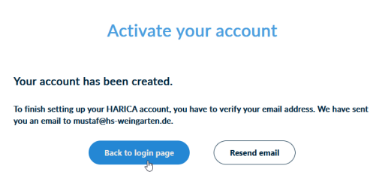
Now go to your e-mail inbox. There you will find an e-mail asking you to confirm your registration.
To do this, click on the "Confirm email" button.
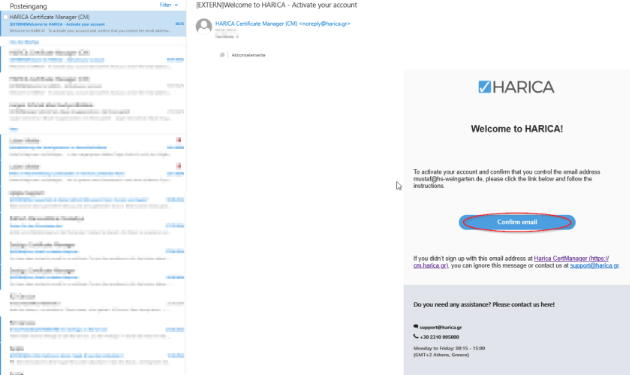
Then confirm in the browser window by clicking on the "Activate" button:
Enter your email address (1) and the password you assigned during registration (29). Confirm the entry by clicking on the "Login" button (3)
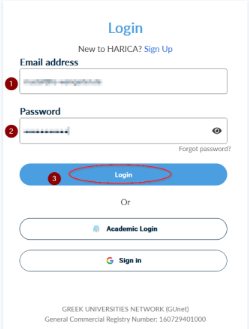
Select the correct certificate
Now click on "Email" in the left-hand menu area:
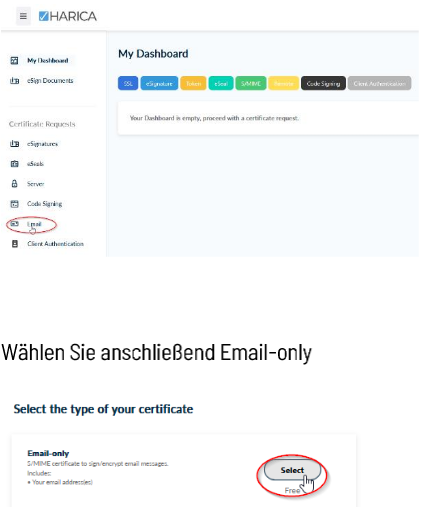
Then select Email-only
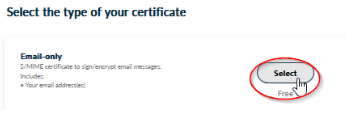
In the following window, check the e-mail address and click on the "Next" button.
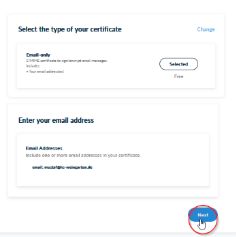
Then confirm again and click on the "Next" button.
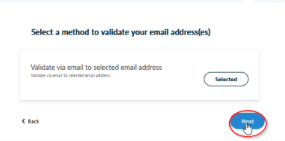
Click on the "Submit" button (2) to complete the application.
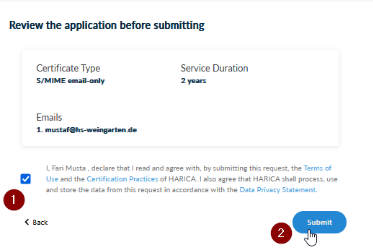
After the following page is displayed, you can log out and close the page.
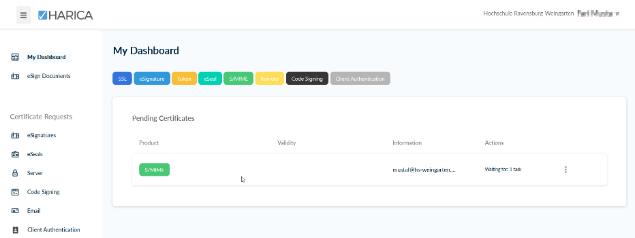
Now switch back to the mail program. Confirm the certificate request again in the mail program by clicking on the "Confirm" button:
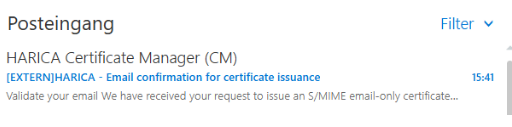
Log in again with your e-mail address (1) and your previously created password (2) and click on the "Login" button (3).
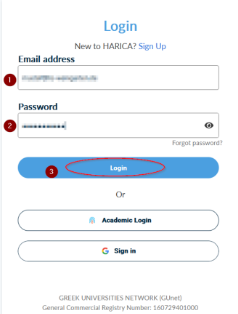
If necessary, confirm the query again by clicking on "Confirm"
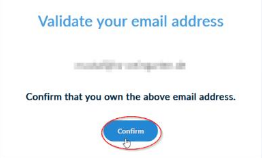
Then click on "Enroll your Certificate" in the dashboard
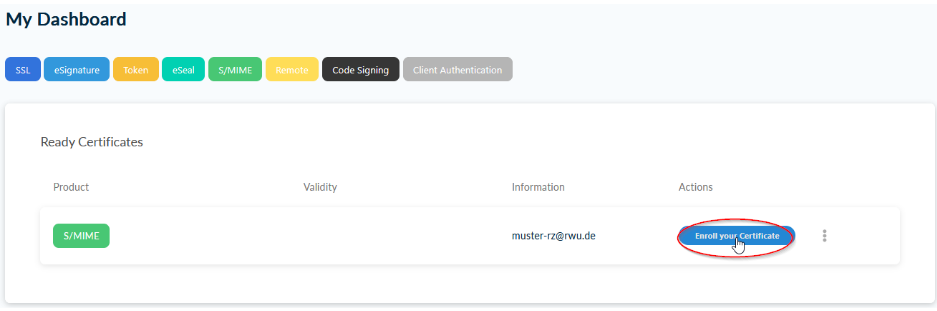
In the following window, assign a secure password (1) for your certificate, confirm it (2) and activate the checkbox (3)
Important: This password protects your certificate. Remember it well! If you forget your password, you will no longer be able to use your certificate!
Finally, click on "Enroll Certificate" (4).
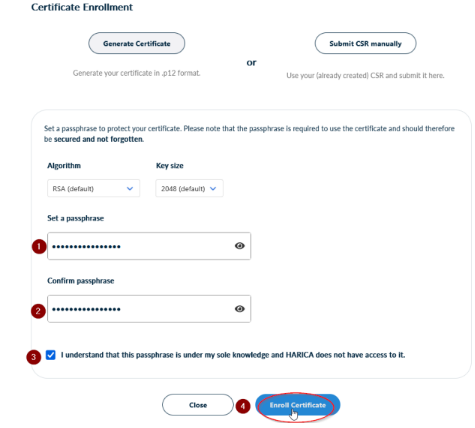
After a short wait, your certificate is ready for download. Click on the "Download" button.
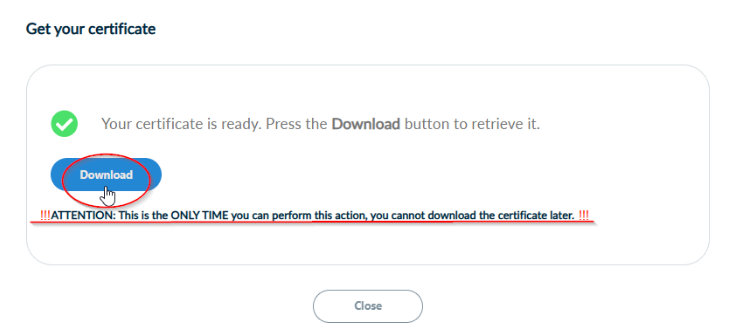
Important: You can only download the certificate here and now.
Your certificate will be downloaded to your default download folder
You have now successfully created your certificate
Save the certificate in a secure folder and remember the password.
You can find out how to generate an email certificate in our service portal.
LSF
LSF is the abbreviation for "Lehre, Studium, Forschung" (teaching, studies, research) and refers to the campus management system at Ravensburg-Weingarten University of Applied Sciences.
The course catalog, study plans, study program modules, lecturer plans and event search are popular functions that are also available to guests.
LSF provides functions not only for students, but also for professors, lecturers, employees, applicants and guests. The range of functions is assigned via "roles".
LSF is used as the leading system at Ravensburg-Weingarten University of Applied Sciences, i.e. many connected systems such as LDAP, Portal, the new website, Moodle learning platform etc... access the data from LSF and process it further.
- Information about registered examinations
- Exam registration and deregistration
- Grade sheet
- Personal timetable
- Events canceled today
- My examination schedule
- Exam registration and deregistration
- Event direct link to the Moodle e-learning system
- Export timetable in iCAL format
- and other functions...
- Room occupancy (free rooms)
- Person overlap diagram
- My lecturer schedule
- My events
- My participants
- Events canceled today
- Quality assurance of course content
- Functions for lecturers with the special function of dean
- Functions for lecturers with the special function examiner
- Sending a message to participants of a course
- Entering canceled dates, projects and publications
- Entering projects and publications in LSF
- Attend courses as a member of staff
- Change degree program/institution and roles
- and other functions...
- TAN management
- View grades
- Student counseling
- Overview of all exams
- and other functions...
- Personal timetable
- My evaluations
- View minutes
- Room occupancy (free rooms)
- Person overlap diagram
- My participants
- Events canceled today
- Generate ECTS catalog
- Generate project list for IAF annual report
- Generate publication list for IAF annual report
- Create module catalog
- Change degree program/institution and roles
- Maintaining the personal employee profile in LSF
- Create persons in LSF (e.g. lecturers, institution members in general, students (for AStA, Formula Student, etc...)
- Edit degree program module tree
- Creating a new course
- Publish information on the QISView lecture hall display
- Editing a course's enrolment period
- Creating/editing an LSF course
- Entering cancellation dates
- Entering projects and publications in LSF
- Registering courses as an employee
- Register LSF courses as a faculty/institution administrator
- Edit institution address
- and other functions...
- TAN management
- Note view
- Note booking
- and other functions...
- Room occupancy (free rooms)
- Person overlap diagram
- Create ECTS catalog
- Create module catalog
- Quality assurance Course content
- Change degree program/institution and roles
- Publish information on the QISView lecture hall display
- Entry of cancelation dates
- and other functions...
- Room occupancy (free rooms)
- Person overlap diagram
- Certificate generator
- Generate list of exam registrations
- and other functions...
Fex (file exchange)
The FEX (File Exchange) file exchange service makes it easy to transfer large and very large files to other people (or to yourself!), even with private e-mail addresses.
You can access the service at https://fex.hs-weingarten.de/pua. Login is your HRW account (no e-mail alias).
Simply enter the e-mail address of the recipient (or several e-mail addresses separated by ";") and select the file to be transferred.
The file is uploaded to the fex server and the recipient receives an e-mail with the link to this file.
If you want to transfer several files, first pack the files into an archive.
You can also invite a user to provide you with a file. Under "user config & operation control" --> "create subuser", enter the e-mail address of the subuser. They will then receive a link via which they can upload the file to you.
Please note that the files are deleted 5 minutes after a successful download, otherwise no later than 10 days after the upload.